

If you work in Claude Code all day, finishing a client task and recording it are separate jobs. The code is ready, but the tracker still says you are working on it. Connecting the tracker through MCP gives you a way to ask about outstanding work and request updates from the conversation where the work happened.
This guide uses TASKUL, our product, as the concrete example. The setup details and tool list were checked on 29 September 2026. The failure modes described below are ones we hit ourselves, including one in the course of writing this: real client names came back in a tool response. Every client name in the worked example is invented.
What connecting your task tracker actually means
MCP stands for Model Context Protocol. For this workflow, think of an MCP server as a set of named tools the agent can request: read the task list, find a project, or change a task. The useful distinction is between retrieving information and changing the system that holds it.
A conversation about your task list is not evidence that the tracker changed. A proposed update is not a completed update. Keep those states separate, particularly when you move from asking what is due to asking the agent to mark work complete.
The tracker also remains only as useful as the information you put into it. An empty schedule does not account for a deadline buried in an unanswered email. Before connecting anything, bring your actual commitments into the system. Our guide to juggling multiple clients covers that underlying discipline.
Connect TASKUL from its Settings screen
TASKUL uses HTTP to its hosted MCP server; there is no local server to install. Access is on paid plans, checked on 29 September 2026. The Settings note says:
Note: MCP integration is available on paid plans (Standard / Pro / Full).
- Open TASKUL Settings and find API Key (Claude Code).
- Issue an API key. It is shown once, so save it securely when it appears. Keep it out of client repositories, shared notes and screenshots.
- Run the command shown in Settings. Use the server URL from that screen and your issued key.
- Open a new Claude Code conversation after adding the server.
The command has this shape:
claude mcp add --transport http taskul <URL shown in Settings> -s user --header "Authorization: Bearer <your key>"
The angle-bracketed text is a placeholder, not something to run literally. Copy the actual command from Settings rather than guessing the endpoint. Treat the completed command as a secret because it contains your key. Do not paste it into a support issue or a client chat.
The flags were verified on Claude Code 2.1.284, checked on 29 September 2026. --transport http selects HTTP. -H and --header are the short and long forms for supplying a header. -s and --scope accept local, user or project; the default is local. The Settings command above explicitly selects user.
Keep that scope choice deliberate. Use the Settings command for this setup and keep credentials out of a client’s repository. Do not treat a scope flag as proof that the server can see only the client whose code you are editing. Before using it with live work, establish which account and records the credential can reach.
For an initial check, ask Claude to show the available TASKUL tools without changing anything. Then request a read for an intended project. If the tools are unavailable or the read fails, check the command against Settings and the installed CLI’s claude mcp add --help. Do not use task creation as a connection test.
The complete TASKUL MCP tool list
The tool list below was checked on 29 September 2026 against the server’s own tool definitions. It exposes 13 tools, grouped here by reads and writes. No delete tools are exposed.
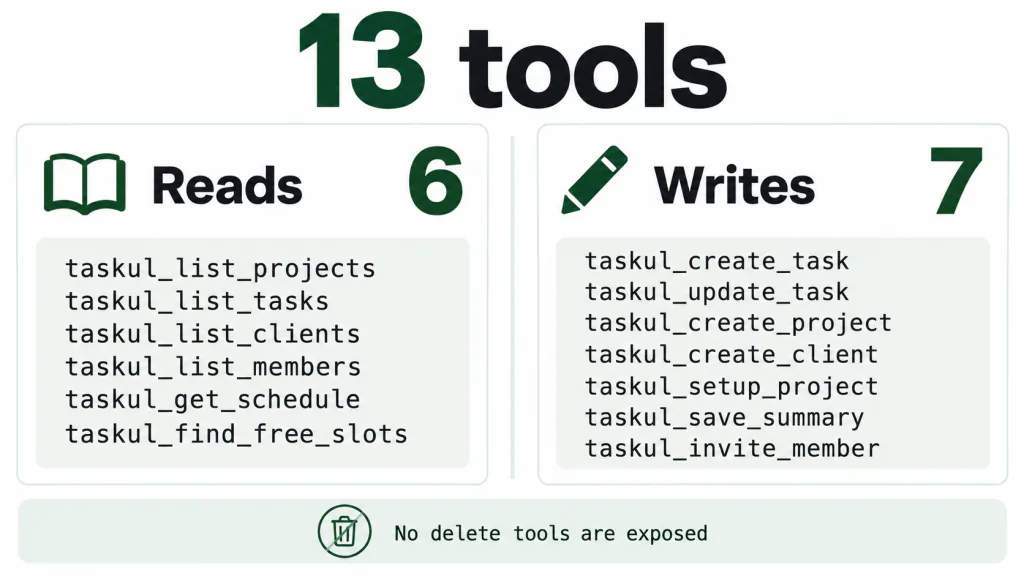
| Group | Exact tool names | How to approach them |
|---|---|---|
| Reads | taskul_list_projects, taskul_list_tasks, taskul_list_clients, taskul_list_members, taskul_get_schedule, taskul_find_free_slots |
Use these to establish the current state. Treat returned client information as confidential. |
| Writes | taskul_create_task, taskul_update_task, taskul_create_project, taskul_create_client, taskul_setup_project, taskul_save_summary, taskul_invite_member |
Review the intended target and change before execution. Verify the resulting state afterwards. |
Read tools do not change tracker records, but that does not make them harmless in every setting. A client list returned while you are screen-sharing is still a disclosure. Request the narrowest information you need, using whatever filtering the tool actually supports.
The absence of delete tools is useful to know, but it does not make writes automatically reversible. A duplicate task still needs correcting. An update can replace information you needed. Do not assume there is an undo tool or promise yourself that you can delete a mistake through MCP.
Where this helps with client project work
Find outstanding tasks before choosing what to work on
Start with a read request: “Show the tasks due this week for the project I identify. Include undated work separately. Do not change anything.” Identify the project before asking for its details, and ask the agent to preserve the record identifiers returned by the tools.
The point is to choose work from the actual tracker rather than from memory. Check whether the response answers your question: a list of dated tasks cannot tell you whether undated work is missing. If a field is absent from the response, ask for clarification rather than letting the agent fill it in.
Record completed work while the context is still available
After a coding session, ask for a proposed tracker update based on the work you actually completed. Have the agent show the target project, target task, existing value and replacement value before writing. Similar task titles are a reason to inspect the records, not a reason to choose the first match.
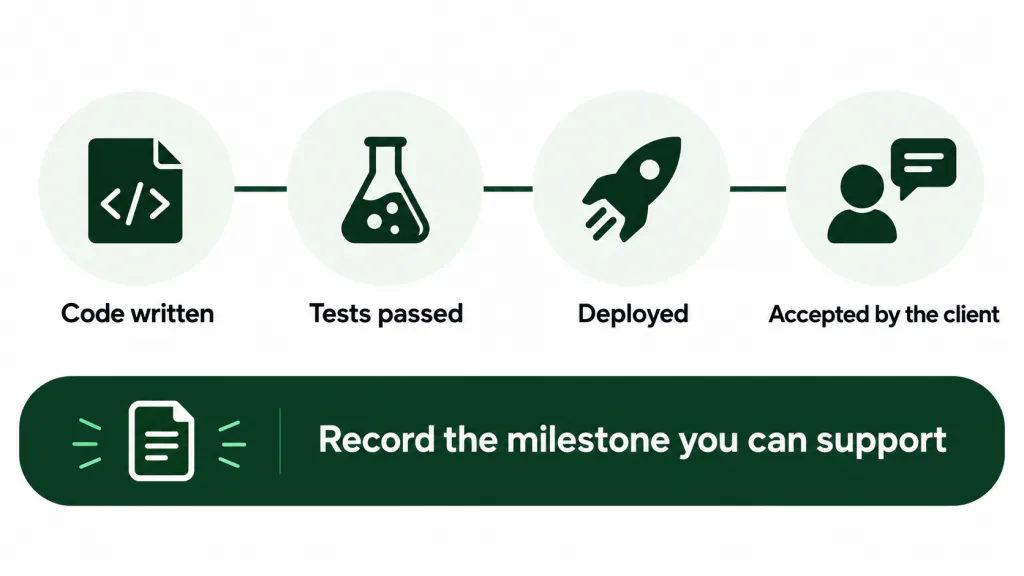
Be precise about what “done” means. Code written, tests passed, deployed and accepted by the client are different milestones. A completed commit does not establish all of them. Record the milestone you can support and leave uncompleted acceptance work visible.
Check capacity before committing to a date
Use the schedule and free-slot reads as inputs to your decision. Compare the returned availability with the effort, dependencies and review work the request needs. A gap in the calendar is not evidence that the work fits into it.
For Australian freelancers working with interstate or overseas clients, make the intended date and time zone explicit before requesting a scheduling change. Ask what date will be written and inspect it afterwards. The wider planning method is in freelance capacity planning.
Turn a brief into proposed tasks before creating them
Ask for a breakdown in the conversation first. Each proposed task should say what needs doing, what completion looks like and what is still unknown. Separate dates the client supplied from dates the agent suggests. Do not let a suggested date become an apparent client commitment without review.
Once you approve the breakdown, create the agreed tasks and read them back. This gives you a chance to catch omitted dependencies and duplicated work before the list becomes your working plan. Our client brief to project plan guide covers what to look for in that breakdown.
Using the same approach with Notion, Jira or Linear
If you arrived by searching “claude code mcp notion”, “claude code mcp jira” or a similar query for Linear, the same approach applies to any tracker that publishes an MCP server: establish access, inspect the tools, start with reads, then review writes. The TASKUL command above is specific to TASKUL. It is not a connection recipe for those other products.
Before adding another server, get clear answers to these questions from its documentation and configuration:
- How does authentication work? What credential or sign-in method does it require, whose identity does it use, and how can access be withdrawn?
- What is the scope of access? Which workspace, projects and client records can the server reach? Keep that question separate from where the CLI connection is configured.
- Which tools write? Identify anything that creates, updates, shares or invites. A friendly tool description is not a substitute for knowing what it changes.
- Are delete tools exposed? Establish whether deletion exists and what review it needs before the agent can use it.
- What data comes back? Inspect responses privately. Check for names, descriptions, comments and other information that would be inappropriate in a shared transcript.
Those are evaluation questions, not claims about the Notion, Jira or Linear servers. Do not carry assumptions about TASKUL’s tool names, authentication or lack of delete tools into another connection.
The failure modes to plan for
Client data ends up in the transcript
During drafting, a tool response returned real client names. That is why this guide uses invented names rather than a pasted response. Reading data is enough to bring it into a conversation; you do not have to change a record to create a confidentiality problem.
Before recording a demo, screen-sharing or copying a session into an issue, inspect the transcript for client information and credentials. Do not limit that review to the final answer. Tool output earlier in the conversation may contain details that the final answer omitted.
Use invented data for demonstrations. For private work, request only the records needed for the current task. If you need help debugging a response, reproduce its structure with invented values rather than sharing the original client data.
The agent can choose the wrong write
The non-deterministic part is the agent’s interpretation: which tool it selects, which record it targets and which values it supplies. You should not treat a natural-language request as a fixed script. “Update the homepage task” is ambiguous when a project contains several homepage tasks.
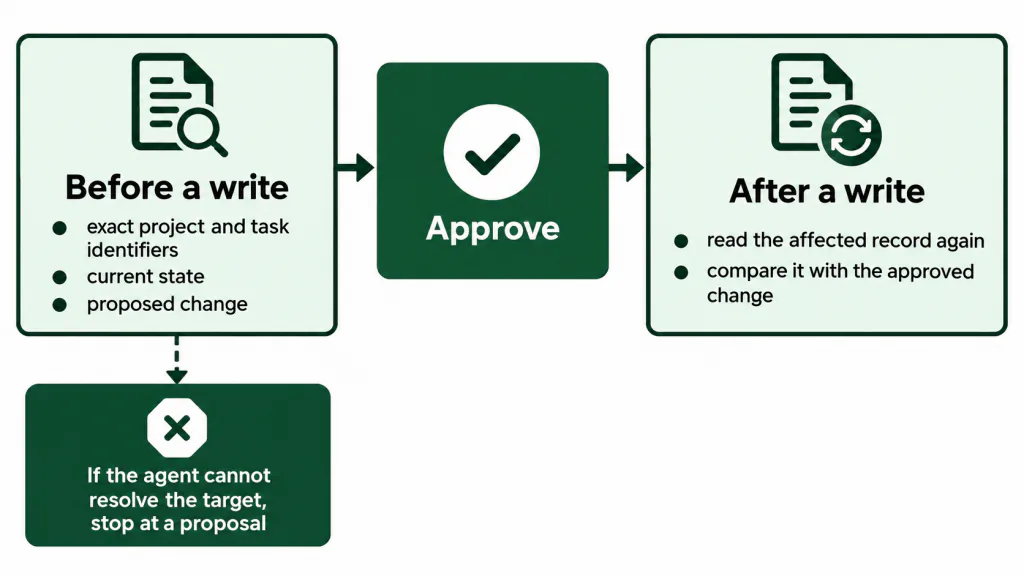
Before a write, require the exact project and task identifiers returned by the tracker, the current state and the proposed change. If the agent cannot resolve the target, stop at a proposal. Do not let it infer the client from the repository name.
After a write, read the affected record again and compare it with the approved change. If execution fails or the response is unclear, inspect the tracker before retrying. Repeating a creation request without checking can leave you with duplicate work to untangle.
Apply extra care to invitations and saved summaries. Check the intended recipient or audience before approving them. The verified tool list establishes that these writes exist; it does not establish every notification or visibility rule. Resolve those details before using them for client work.
Keep money and client-facing messages out of this workflow
Use this workflow to inspect work and maintain its internal record. Keep financial actions and sending client-facing messages outside the agent’s autonomous remit. A draft for your review is different from authority to send it or make a financial commitment.
Even a correct task update can make a poor client message. An internal note may mention an unresolved concern without the context the client needs. Review the wording, recipient and underlying facts yourself before communicating externally. This is a working boundary, not a claim that the tools listed above provide financial or messaging functions.
A worked example with invented client data
This entire scenario is invented, including all names, projects, dates and outcomes. Suppose you maintain a site rebuild for “Harbourline Coffee”, a website refresh for “Peak Dental” and a maintenance retainer for “Mornington Press”. These are fictional clients, not customer examples.
Begin privately by identifying the Harbourline project and asking for its outstanding tasks. In this invented response, the staging review is due Thursday and a form-validation task has no date. Ask the agent to show the matching records and their identifiers. Do not ask it to organise the entire account yet.
Next, inspect the schedule before agreeing to the Thursday review. You notice that the form work must be checked before staging is ready. Ask for a proposed date change for that task, then review it against the work left to do. The calendar response informs your decision; it does not make the promise for you.
After completing the form work, request a proposed update for the exact task you inspected. Suppose the tests passed but deployment is still outstanding. The note should say that. Approve the change only after checking the target and wording, then ask for a fresh read to confirm what was saved.
Finally, draft an internal project summary from the confirmed work. Review its contents and intended audience before using taskul_save_summary. Write any client update separately. Leave the Peak Dental and Mornington Press records alone: they have no part in this task.
A rollout checklist you can use
Build trust in the connection in this order. Advance when you understand the responses and can check the results, rather than because a trial run sounded convincing.
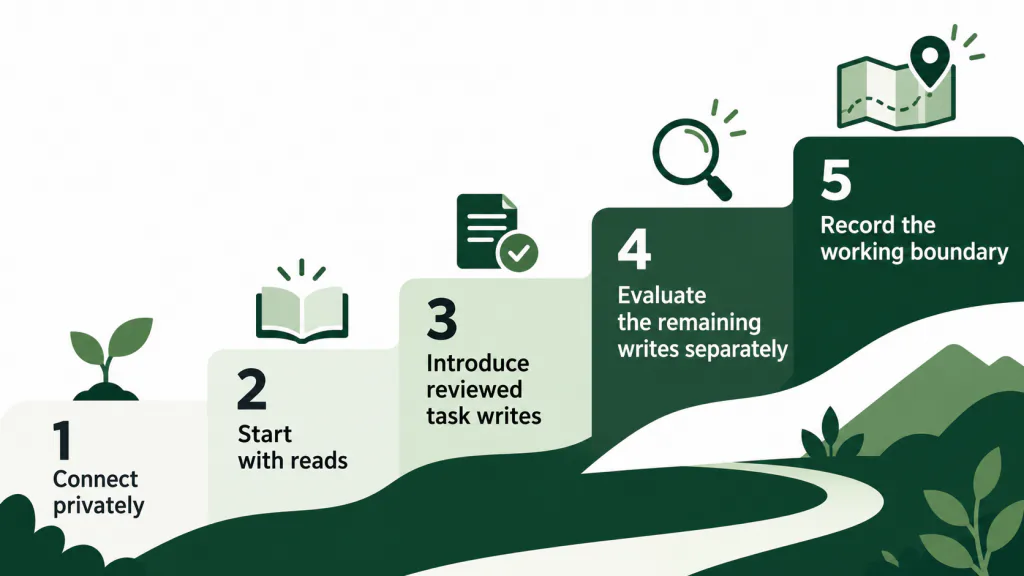
- Connect privately. Follow Settings, protect the issued key and open a new Claude Code conversation.
- Start with reads. Compare returned projects, tasks and dates with the tracker. Learn what information appears in the transcript.
- Introduce reviewed task writes. Require an exact target and proposed change, approve it, then read the result back. Establish how you will correct a mistake before allowing it.
- Evaluate the remaining writes separately. Project setup, client creation, summaries and invitations need their own review. Successful task updates do not justify blanket approval.
- Record the working boundary. State when to read, when to propose and when to wait for approval. Treat instructions as guidance, not proof of enforced access restrictions.
A starting instruction you can adapt:
Use tracker reads when needed to answer questions about the identified project. Before any write, show the exact target and proposed change and wait for my approval. Ask when the target is ambiguous. After writing, read back the affected record and report any difference. Keep financial actions and sending client-facing messages outside this workflow.
This approach earns its place when you already work in Claude Code and repeatedly leave it to check or record client work. If the tracker is already open and that routine works, keep it. Judge the connection by whether the project record stays accurate and you can explain every change it made.