
The monday.com Free plan gives you 2 seats, 3 boards and 200 items for the whole account, and it does not let you invite a client at all. Most people looking for an alternative to monday.com hit one of those walls, or their trial ends and the account drops to Free. Before you compare tools, work out which wall you hit, because paying for monday.com fixes some of them and not others. Paid plans start at 3 seats and then go up in groups of 5, and clients can only join as guests from the Standard plan.
TASKUL publishes this guide, and TASKUL is our product. It appears below as one option for freelancers and small studios doing client work. We have an interest in that choice, so weigh our view accordingly. The guide also covers staying on monday.com, because for some teams that is the better answer.
How we checked the facts
Every monday.com fact here was checked on 21 October 2026 against monday.com’s own pricing page and help centre, with the link beside each fact. We quote their wording where the exact words matter. We did not test a monday.com export file ourselves.
The pricing page showed prices in Japanese yen from our location, and asking for Australian dollars did not change that. The page itself says The price is determined by the user’s billing country.
(monday.com pricing) We could not confirm the amounts an Australian account is charged, so this guide quotes no prices and no currency conversion. Plan names, seat rules and limits do not depend on currency, and those are what decide whether you should stay.
What does the monday.com Free plan include?
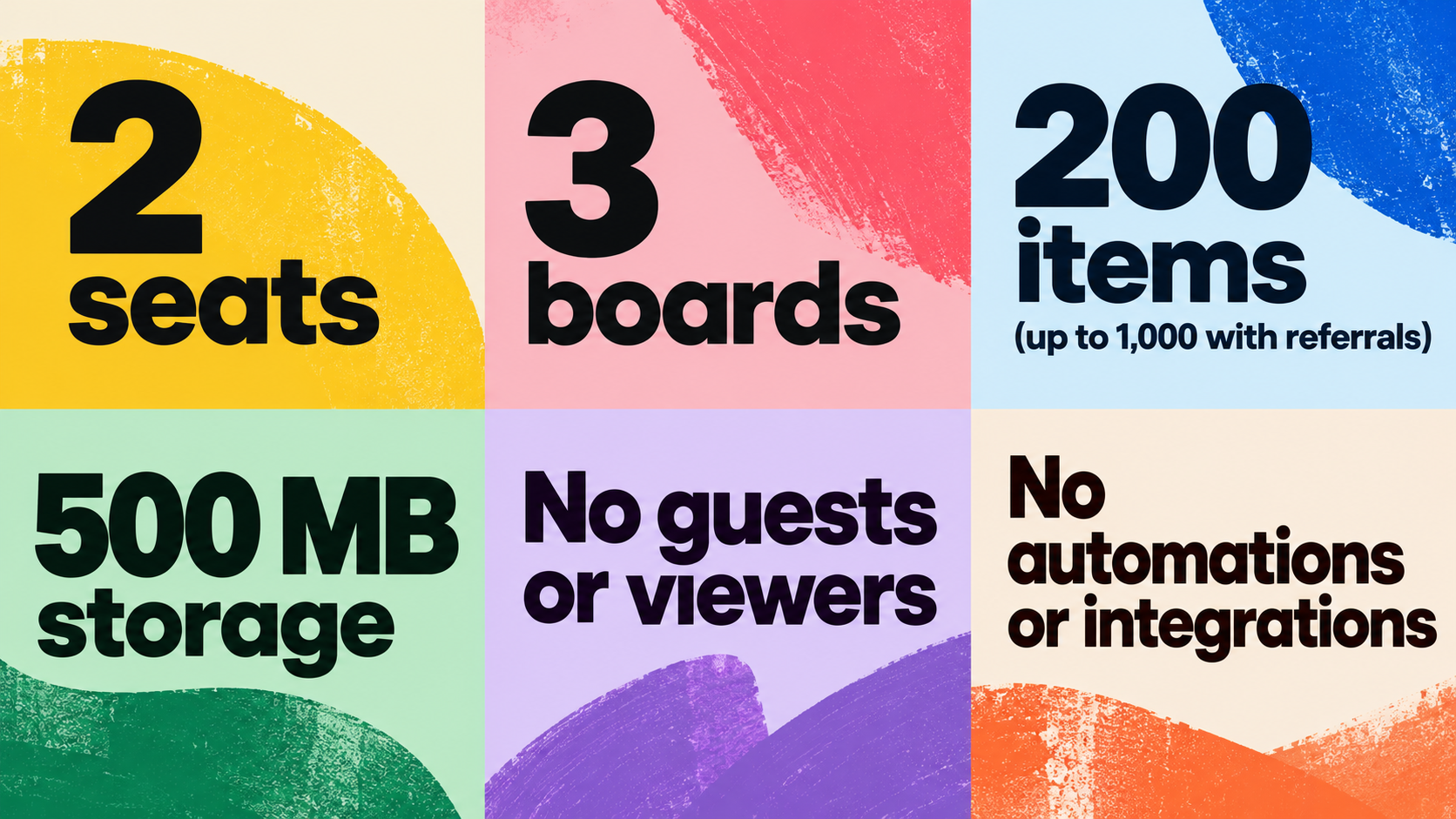
monday.com’s help centre sets out the Free plan in its Understanding the Free Plan article. These are the limits that matter for client work:
- Two people.
The Free Plan has a limit of two seats on the account.
- Three boards.
The Free plan has a limit of 3 boards for the entire account.
If you run one board per client, that is three clients. - 200 items in total.
On the Free Plan, you are limited to 200 items. No matter the number of boards in your account, the total number of items can’t go over your item limit.
Referring other accounts can lift this to 1,000 items. - No clients.
You can’t invite guests or viewers on this plan.
- No automations or integrations.
If you choose the Free Plan, you will not be able to use automations or integrations.
- Missing columns. The same page lists the Formula, Time Tracking, Progress Tracking and Files columns as ones you miss out on. Storage is 500 MB.
The pricing page agrees on the headline numbers: Up to 2 seats
, Up to 3 boards
and Up to 3 Docs
. It also lists AI features as Available from Basic
.
What happens when a trial ends over the limits?
monday.com’s help page says you reach Free by starting a trial first: When the trial expires, you can choose to move your account to the free plan
. If you built more than the Free limits allow during the trial, your existing data remains accessible in view-only mode. This means you can still open and review your content, but you won’t be able to add new items or create additional boards.
Two more points on the same page matter if clients were already in the account. If you are changing over from a paid plan to the free plan, the boards on your account that are private or shareable will appear as unavailable.
To get them back, you convert them to Main boards, which counts against the 200-item limit. monday.com’s help pages also do not say whether a view-only Free account can still export boards, so export while you still have full access if you can.
This is the point where many people start searching. Nothing is deleted, but you cannot keep working in that account until you pay or cut back.
Which monday.com limit is actually in your way?
Match what is happening to the plan that removes it. Entries are from the pricing page and the help pages linked in each section, checked 21 October 2026.
| What is happening | The monday.com limit behind it | Lowest plan that removes it |
|---|---|---|
| You cannot add a new task or board | Free: 200 items and 3 boards across the account | Basic (unlimited items) |
| A third person needs to join | Free: 2 seats | Any paid plan, from 3 seats |
| A client should see progress but not edit | Free: no viewers | Basic (unlimited free viewers) |
| A client or contractor should edit one board only | Guests need shareable boards | Standard |
| Status changes should notify people or move items | Free: no automations or integrations | Standard (250 automation actions a month) |
| You need to log hours against tasks | Time Tracking column | Pro |
If the only problem is the item count, Basic is the smallest fix. If the problem is clients, the answer jumps to Standard, and the seat rules below decide what that costs you.
How many seats will you pay for?

monday.com does not charge per person. Its plans and pricing help page explains: The pricing works per group of seats and not per seat. We call this bucket pricing. Our pricing plans start at a minimum of 3 seats, and then ascend in multiples of 5. If you have a team of 4, for instance, you should choose the 5-seat option. And if you have a team of 6, you will need to select the 10-seat plan.
For a small studio, that changes the maths. Take a fictional Perth studio with four people: two designers, a developer and the owner. On Free, two of them cannot join. On any paid plan, they pay for 5 seats. If they hire a sixth person, the bill moves to 10 seats, not 6.
Clients change the count too. Say the same studio is on Standard with 5 seats. Four members leave one seat spare. Under monday.com’s guest rule, the first 3 guests are free and guests 4 to 7 count as one seat, so up to 7 client guests fit. The 8th guest makes a second guest seat, which takes the account past 5 seats and triggers the automatic upgrade described below. Yearly billing includes an 18% discount over monthly billing
, according to the same help page.
Solo freelancers are affected too. If you work alone and the 200-item cap is your only problem, you still pay for at least 3 seats on any paid plan.
How can clients get into monday.com?
There are two routes, and they behave very differently.
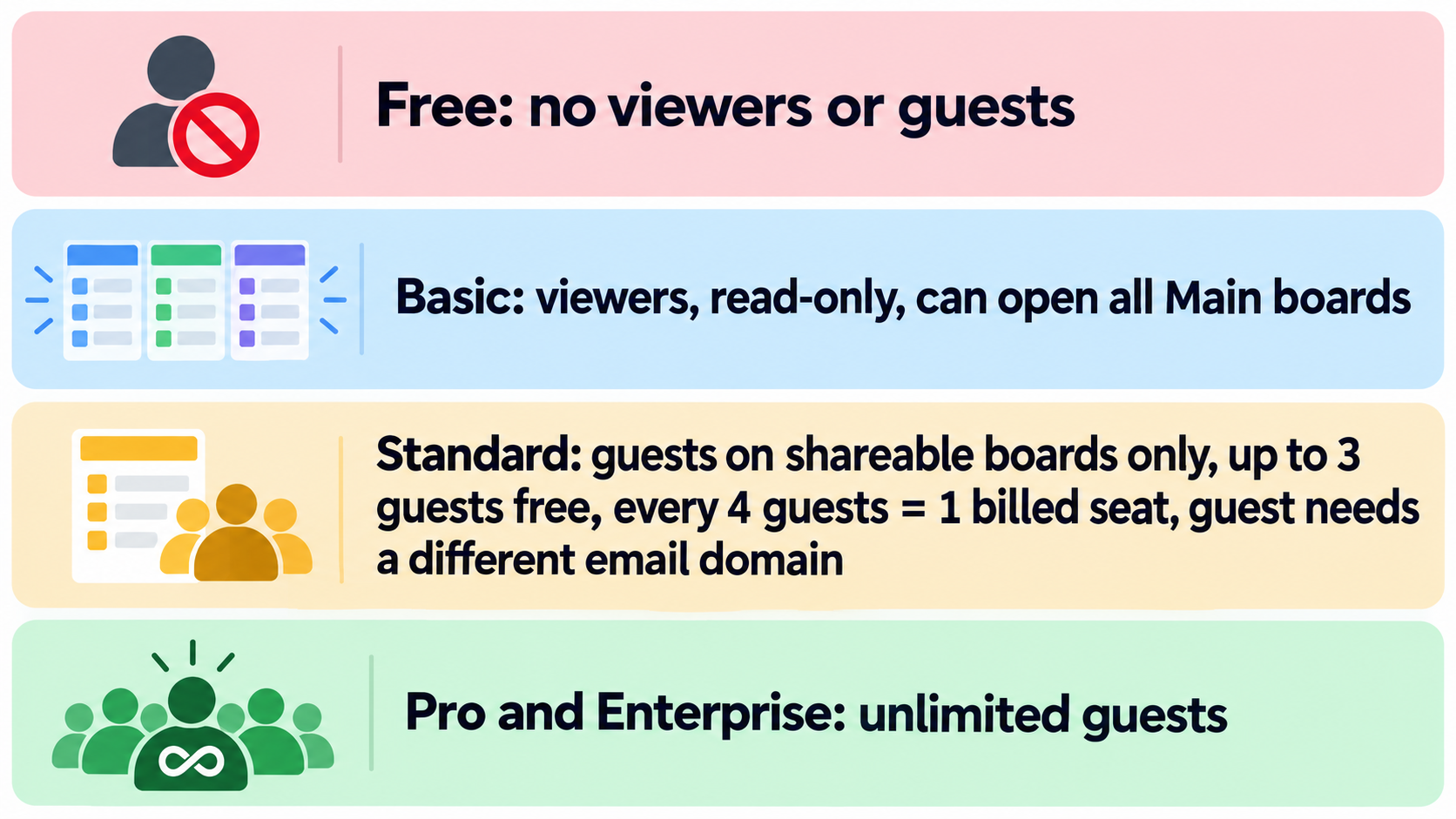
Viewers: read-only, from Basic
The pricing page lists Unlimited free viewers
from Basic and says Viewers have read-only access to your account data, with no editing rights.
The catch is what they can read. monday.com’s user types help page says Viewers are read-only users who can access Main boards, as well as Shareable and Private boards they’ve been invited to.
If each client has a Main board in your account, a client added as a viewer can open the other clients’ Main boards too. That is rarely what a freelancer wants.
Guests: one board at a time, from Standard
Guests are people outside your team who work on a Shareable Board
. monday.com’s guide to sharing with guests marks this Available on Standard plan and above
and says guests will NOT be able to view information on Main or Private Boards.
Two rules from its pricing for guests page shape the cost:
- Every fourth guest is a paid seat.
Guests are included on the Standard plan, and their billing follows a 4:1 ratio—every 4 guests count as 1 billed seat. That means you can invite up to 3 guests for free.
On Pro and Enterprise, guests are unlimited. - Guests need a different email domain.
A guest must have a different email domain than the person who created the account.
A contractor using the same company domain as you cannot join as a guest.
The same page warns that if team members and guest groups together go over your seat count, your account will be automatically upgraded
, with two emails before it happens. With four clients each sending one person, you are already past the free guests.
Stay, upgrade or move?
Each route suits a different kind of client work.
- Stay on Free if you work alone or in a pair, need no more than three boards, keep the item count under 200, and update clients by email rather than inviting them in.
- Upgrade if your boards, automations and habits already work and the limit is the only problem. Basic covers item count and read-only viewers. Standard is the first plan with guests, automations, and timeline and Gantt views. Count your people and round up to monday.com’s seat bucket before you compare prices.
- Move if another tool’s free plan or pricing fits the way your team is made up, for example if you would pay for seats nobody uses, or need more editors than Free allows. Test with one board first.
Which alternative fits the limit you hit?
If you decide to move, start from the wall you hit. The free-plan facts below come from our other guides, where we read each vendor’s own pricing page on 29 September 2026. Free plans change often, so recheck the vendor’s page before you commit.
| Your monday.com wall | Free plans worth testing | What their free plan allowed on 29 September 2026 |
|---|---|---|
| More than 2 people need to edit | Trello, ClickUp | Trello: 10 collaborators per Workspace. ClickUp: unlimited Free Plan members. |
| 200 items or 3 boards are not enough | Trello, ClickUp, Asana Personal | Trello: unlimited cards and 10 boards per Workspace. ClickUp: unlimited tasks. Asana Personal: unlimited tasks and projects, for 2 users. |
| Clients need to see or comment | Notion | 10 external guests on Free. A second member caps the workspace’s blocks. |
| You want simple automations | ClickUp, Trello | ClickUp: 5 active automation rules and 100 executions. Trello: 250 Workspace command runs per month. |
Each tool has its own catch, and our guides cover them: Trello alternatives, Asana alternatives (which also covers ClickUp) and Notion alternatives. For studios with approval rounds, see project management software for creative agencies.
What comes out of monday.com when you export?
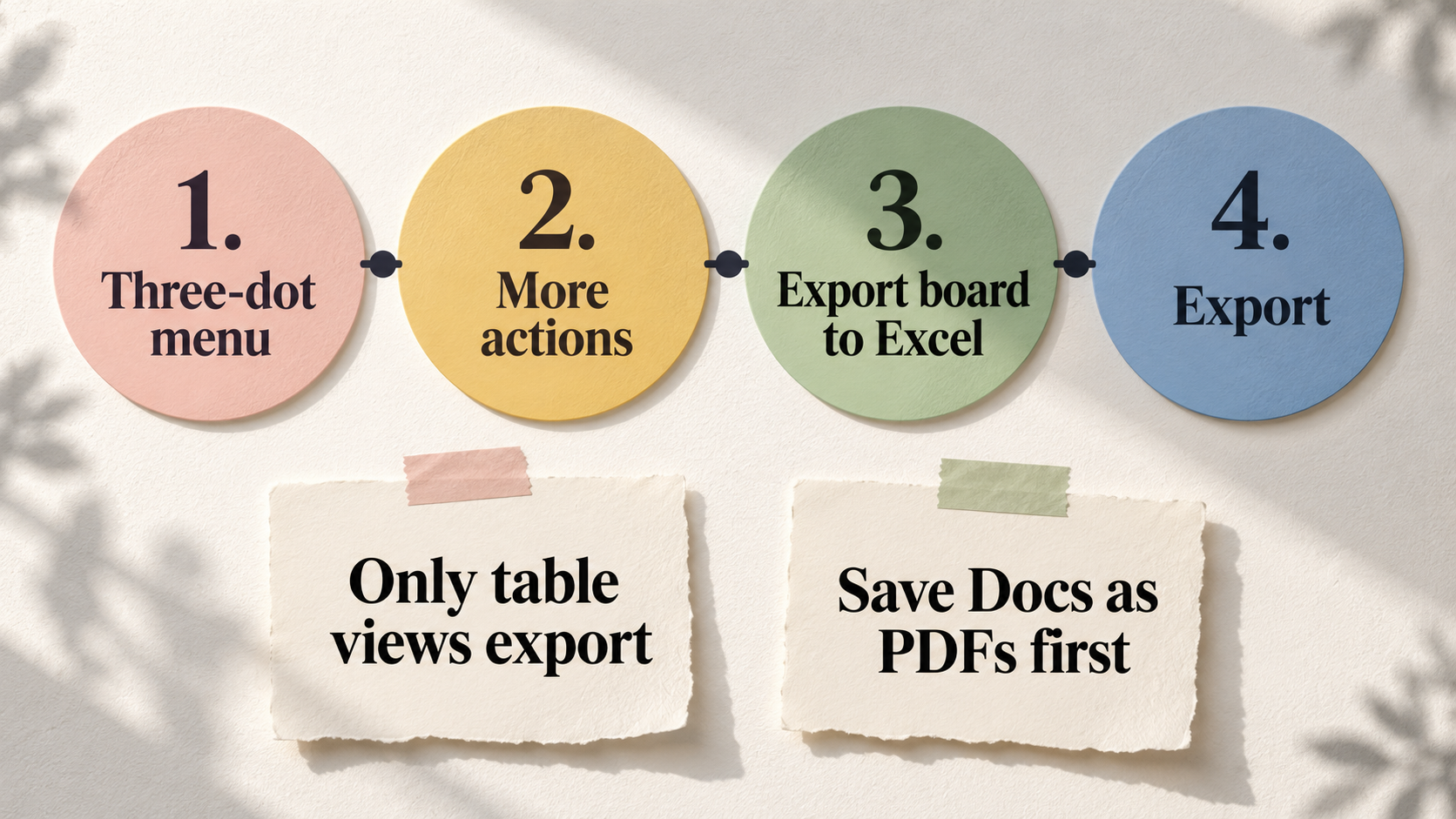
monday.com exports boards to Excel. Its Export from monday to Excel page gives the steps:
- Click the three-dot menu at the top right of your board.
- Click More actions.
- Click Export board to Excel.
- Click Export in the window that appears.
Points from the same page to plan around:
- Only the table comes out.
At the moment, it is only possible to export the table views of a board … Board views will not be exported.
Your Kanban, calendar and chart views need rebuilding. - Updates are optional. You can export
just the table or include all updates and/or subitems
, butif you have Subitems on your board, their updates will not be exported to Excel
. - Auto numbers are dropped.
The Auto Number Column is not supported when exporting to Excel.
For everything at once, an account admin can download a zip of all boards and uploaded files, once every 24 hours, according to monday.com’s account export page. Read the note first: Archived boards and workdocs are not supported when exporting the account data. It is advisable to export your workdocs as a PDF before exporting your account data …
Dashboards are not included either. If your briefs live in monday.com Docs, save each one as a PDF before you leave.
Whatever tool you test, import one client board first, not the whole account. Then check four things: task names, due dates, who each task is assigned to, and which client each task belongs to. Those four decide whether you can work from the new tool next week.
Where our product fits
TASKUL is our product. It is built for one person running work for several clients, not for staff inside one company. Clients, projects and tasks sit together, so you do not rebuild a board for every new client. When you invite a partner to a project, they see the tasks you shared, and client details and anything to do with money stay private to you. Check which plans include partner invites on the pricing page before you rely on it.
On moving from monday.com: TASKUL’s importer accepts Excel files (.xlsx) as well as CSV, so you can upload the board export without converting it. We have not run a monday.com file through it ourselves, so prepare the sheet first:
- Add a Client column and a Project column, and fill them in on every row. Without them, every task lands in one project called
Imported Tasks
with no client attached. - Delete group heading rows and blank rows if the file has any, so a single header row sits above the tasks.
- Check the column matches. A column headed Name becomes the task name and one headed Date becomes the due date. A people column headed Person or Owner is not picked up on its own, so choose it for the assignee on the Match Your Columns screen.
- Reset statuses afterwards. A status of Done imports as done. Statuses such as Working on it or Stuck import as new tasks.
We would consider TASKUL when your monday.com account is mostly one board per client and the main reason to upgrade would be letting clients in. We would not suggest it if you rely on time tracking, a Kanban board or giving clients a login, because TASKUL has none of these. If clients only need to know where things stand, send them a weekly update instead. Our client status report template gives you one to copy.
What to do this week
- Name the wall. Use the table above to find which limit stopped you: items, seats, clients, automations or time tracking.
- Count seats the monday.com way. Add up the people who need to edit, then round up to 3, 5, 10 and so on. Count clients separately as viewers or guests.
- Price the upgrade on the real page. Open monday.com’s pricing page from your billing country and multiply by the seat bucket, not the head count.
- Export one board to Excel and open it in a spreadsheet. Note which columns came through and which views you would need to rebuild.
- Run one live client in the candidate tool for a week alongside monday.com before moving the rest. Save any Docs as PDFs before you close the account.
Your monday.com decision checklist
Copy these into a note and fill them in before you pay or move:
- Wall hit: items, seats, client access, automations or time tracking.
- Editors: how many people need to create or edit work, and the seat bucket that means.
- Clients: whether each client needs a login, and whether viewer access would show them other clients’ boards.
- Export test: which columns and views survived the Excel export, and which Docs you saved as PDFs.
- Changeover date: the day new work stops going into monday.com.
For keeping several clients moving once the tool question is settled, see our guide to juggling multiple clients as a freelancer.