
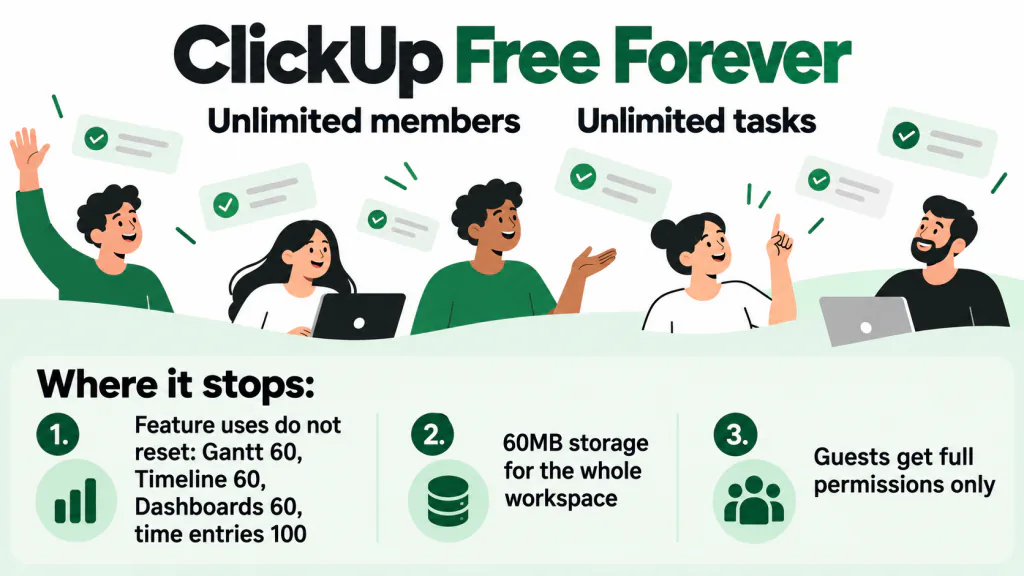
ClickUp’s Free Forever plan does not stop you at a number of people or tasks. Members and tasks are both unlimited. It stops you in three other places: feature uses that never reset, 60MB of storage for the whole workspace, and clients who can only join with full permissions. Most people searching for a ClickUp alternative have hit one of those, or are tired of a tool built for much bigger teams than theirs. Work out which one it is first. Paying ClickUp removes the storage cap and lets clients in as view-only guests, but on the first paid plan some use counts only go up rather than disappear.
TASKUL publishes this guide, and TASKUL is our product. It appears below as one option for freelancers and small studios doing client work. We have an interest in that choice, so weigh our view accordingly. The guide also covers staying on ClickUp, because for some people that is the better answer.
How we checked the facts
Every ClickUp fact here was checked on 25 October 2026 against ClickUp’s own pricing page and help centre, with the link beside each fact. We quote their wording where the exact words matter. We did not create a ClickUp account or test a ClickUp export file ourselves.
This guide quotes no ClickUp prices and names no paid plans. ClickUp’s upgrade help page says If your local currency isn’t USD, the pricing you see on the website is the current conversion rate to USD. You’ll be charged in USD.
The pricing page we loaded showed amounts with a bare dollar sign and no currency code. On 23 October we also found that the paid plan names changed when we changed the browser language, and ClickUp’s help centre says Not all Workspaces have been upgraded yet
to its new plans. So we compare the free plan only, which is the same for everyone.
Is ClickUp really free?
Yes, with limits that work differently from most free plans. The pricing page lists Unlimited Free Members
, and the help centre says Unlimited tasks are available on every ClickUp plan.
(Tasks feature availability) List, Board, Calendar and Table views are free with no use count.
Wall 1: feature uses run out and do not come back
Several features are counted by use, not by month. ClickUp’s pricing per user role and plan page is plain about it: Feature usage limits do not reset. Monthly limits, like AI Credits on paid plans and Automation Actions, are the exception and reset each month.
On Free Forever, the limits that matter for client work are:
- Gantt view, Timeline view and Workload view: 60 uses each (Views feature availability).
- Dashboards: 60 uses. The Dashboards page adds
These uses do not reset.
It also listsView a Dashboard
among the actions that count, so simply opening one uses it up. - Time tracking: 100 uses for creating, editing or deleting a time entry, and 40 uses for the advanced features, which include marking time entries as billable (Time Tracking feature availability). The same page says
Use of time tracking integrations count towards time tracking use limits.
The pricing page lists time tracking on the free plan, so this is easy to miss. - AI: 500 credits.
Free Forever: 500 total credits per Workspace. This limit does not reset.
(AI Credits availability) - Automations: 5 active, 100 actions a month. These do reset monthly (Automations feature availability).
Nothing you made is lost when you run out. The pricing per user role page says When you hit a usage limit, data created using that feature won’t be impacted. You won’t be able to edit or add new information using the feature until your Workspace is upgraded.
If you log one time entry a day, five days a week, 100 uses last about 20 weeks, fewer if you edit entries, and then the time log takes no new entries until you upgrade.
Wall 2: 60MB of storage for everything
The 60MB is for the whole workspace, not per file. ClickUp’s workspace storage limits page lists Free Forever at 60MB and all paid plans as unlimited. It counts Attachments uploaded to tasks, List info, Notepad, or Docs.
, Attachments uploaded to Chat.
and Voice and screen Clip recordings.
ClickUp’s pages do not quite agree: the upgrade page says If your Workspace has more than 100 MB of data, you’ll need to upgrade or free up some storage.
Plan on 60MB. If you attach design files or screen recordings to tasks, that is the wall you will meet first.
Two structure limits are counted as well. Workspaces on our Free Forever Plan have a limit of 5 Spaces.
and This limit includes inaccessible Spaces.
(Intro to Spaces) Each Space can hold 40 Lists on Free Forever, according to the Lists feature availability page. If you set up one Space per client, that is five clients.
What happens when a client joins your free ClickUp workspace?
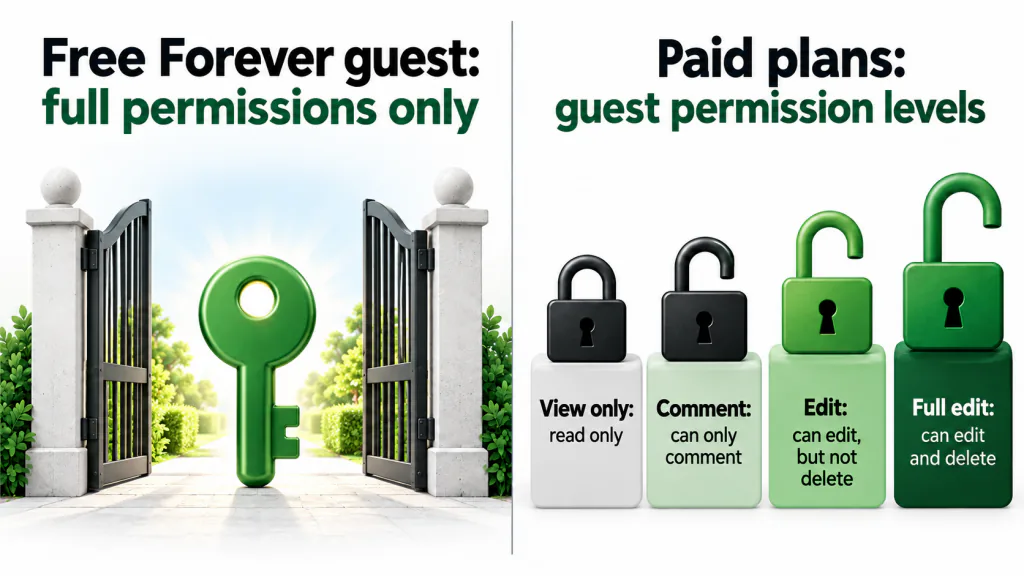
This is the third wall. Clients get full permissions on whatever you share with them, and you cannot reduce that on Free. ClickUp’s guest-type user roles page says On our Free Forever Plan, there is one guest type
, and describes Free Forever guests this way: These guests can only have the full permissions available for the items and locations shared with them.
Its table adds Full permissions only.
and No other permissions can be given.
Guests cost nothing on Free: There is no fee for Free Forever guests. This plan can have an unlimited number.
The problem is control. A client added to a shared List can edit and delete tasks in it. On paid plans, the same page lists four levels instead:
View only: Read only. Can’t comment or edit.
Comment: Can only comment.
Edit: Can edit, but not delete.
Full edit: Can edit and delete.
For clients who only need to watch progress, paying fixes this cleanly. The same table says There is no fee for view only guests. All paid plans can have an unlimited number.
Guests who can comment or edit are different: each paid workspace has a limited number of places for them, and the pricing per user role page says If you run out of permission controlled guests and invite a guest with permissions, a paid member seat is added.
Three more rules from the guest page catch people out:
- Same-domain people cannot be guests. The guest page says anyone who uses your company’s email domain or single sign-on cannot be added as a guest. They become a limited member instead, charged the same as a member.
- Guests cannot join a whole Space.
Guests can’t be invited to a Space.
You share Folders, Lists or tasks one at a time. - Guests cannot export or import. ClickUp’s import and export availability page marks both
No
for every guest type.
If your clients only need to know where things stand, you may not need to invite them at all. A weekly update by email avoids the permission question entirely. Our client status report template gives you one to copy.
Which ClickUp limit is actually in your way?
Match what is happening to whether paying ClickUp removes it. Limits are from the help pages linked above, checked 25 October 2026. The first paid plan and the higher ones treat some counts differently, so check the help page for the plan you are looking at.
| What is happening | The Free Forever limit behind it | Does paying ClickUp remove it? |
|---|---|---|
| Gantt, Timeline, Workload or Dashboards stopped taking edits | 60 uses each, never reset | Partly. On the first paid plan Gantt is unlimited, but Timeline, Workload and Dashboards rise to 100 uses. Higher plans remove the count |
| You cannot log more time | 100 time entry uses, never reset | Yes for basic time entries from the first paid plan. Billable time and other advanced features stay at 40 uses there |
| ClickUp asks you to upgrade or free up storage | 60MB for the whole workspace | Yes. Paid plans list unlimited storage |
| A client should see progress but not edit | Free guests have full permissions only | Yes. View-only guests are free and unlimited on paid plans |
| A client or contractor should edit but not delete | Free guests have full permissions only | Yes, up to your workspace’s number of permission-controlled guests. Past that, a paid seat is added |
| You need a sixth client Space | 5 Spaces, including inaccessible ones | Yes |
| ClickUp feels too big for the work you do | None. This is about fit, not a limit | No. Paying adds features rather than removing them |
If one of the first six rows is your only problem and the rest of ClickUp works for you, upgrading is usually the least work. The last row is the one where moving makes sense.
Stay, upgrade or move?
- Stay on Free if you rarely use Gantt, Timeline or Dashboards, keep files in Google Drive or Dropbox and link to them, and do not invite clients into the workspace.
- Upgrade if your Spaces, statuses and automations already match how you work and a use count, the 60MB, or guest permissions is the only problem. The price you see is a conversion and the charge is in US dollars. The upgrade page adds
Your bank may charge a small foreign transaction fee.
It also describes free trials of paid plans, and the pricing per user role page saysWe offer a 30-day satisfaction guarantee for new customers
, so you can test the fix before you commit. - Move if you spend more time setting ClickUp up than doing client work, or if what you need is simpler than what ClickUp offers.
Which alternative fits the reason you are leaving?
If you decide to move, start from the reason. The facts below come from our other guides, where we read each tool’s own pages on the date shown in that guide. Free plans change often, so recheck the tool’s own page before you commit.
| Why you are leaving ClickUp | Worth testing | What to read first |
|---|---|---|
| You want a simple board, nothing more | Trello | Trello alternatives covers its 10-collaborator and 10-board free limits |
| You want plain lists and projects for one or two people | Asana Personal | Asana alternatives covers the 2-user limit |
| Your briefs and notes matter more than the task list | Notion | Notion alternatives covers what changes when a second person joins |
| You want boards with read-only client viewers | monday.com (paid plans only) | Alternative to monday.com covers viewers, guests and how monday.com counts seats |
| You run several clients alone or in a small studio | TASKUL (our product) | The section below, including its 10-project free limit |
How do you export ClickUp tasks to CSV?
On Free Forever, a workspace Owner or Admin can export task data to a CSV file. ClickUp’s export task data page gives five steps to start the export:
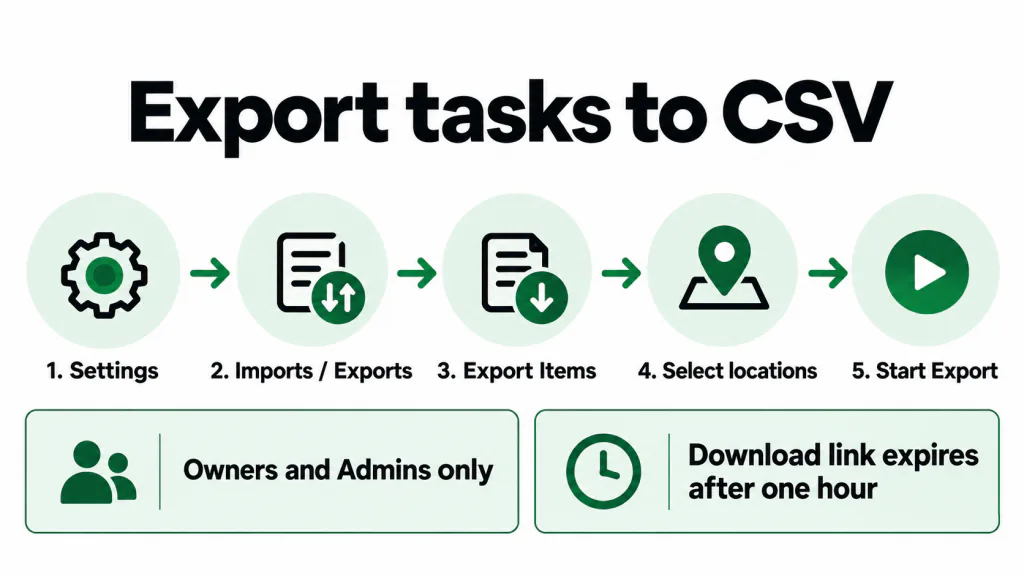
- In the upper-left corner, click your Workspace avatar and select Settings.
- In the All settings sidebar, select Imports / Exports.
- Click Export Items.
- Click the Select locations dropdown and choose the locations to export.
- Click Start Export.
Then, in ClickUp’s words, When the download is complete, click Download Export.
and Save the CSV file.
Points to plan around, from the same page and the import and export availability page:
- Members cannot run it. The workspace export setting is marked
Yes
only for Admins and Owners. If you are a member of someone else’s workspace, ask the owner. - The link expires.
Links to exported data expire after one hour.
- Big exports can fail.
Exports of large Workspaces or Workspaces with large projects may not succeed.
ClickUp’s own advice is that exporting only the items you need makes success more likely. - Dates come out twice.
Dates and Time fields are included in both Unix format and plain text.
The file has a Due date column and a Due date Text column. Use the text one. - Useful columns include Task Name, Status, Due date Text, Assignees, Tags, Priority, List Name, Folder Name/Path, Space Name, Checklists and Comments, according to the export page.
Whatever tool you test, export one client’s List first, not the whole workspace. Then check four things in the new tool: task names, due dates, who each task is assigned to, and which client each task belongs to. Those four decide whether you can work from it next week.
Where our product fits
TASKUL is our product. It is built for one person or a small studio running work for several clients. Clients, projects and tasks sit together, so a new client is a new project, not a new Space to set up. It is deliberately smaller than ClickUp, so start with what it does not have.
What TASKUL does not have
- No time tracking, Gantt or Timeline view, Kanban board, whiteboards or built-in chat. If you depend on any of these, upgrading ClickUp is the better move.
- No view-only or comment-only roles. Everyone you invite is a Member or an Admin.
- No CSV or Excel export of your tasks. Factor that in if you might leave later.
- A 10-project limit on the free plan. Tasks are unlimited, but projects you delete still count towards the 10, so creating and deleting test projects uses them up. If you are on the free plan, a project you invite someone to also counts towards their 10. Projects you are invited to by a paid user do not count towards yours.
What changes when you invite someone
This is where TASKUL differs most from ClickUp’s free guests. People you invite to a project join as a Member unless you make them an Admin. A Member:
- cannot delete tasks. Only the Owner or an Admin can.
- can edit only tasks assigned to them, or tasks nobody is assigned to. A task assigned to someone else cannot be changed.
- does not see your cost details. The invite screen says cost management is stored as private data and not shown to other members. What is shared is
Task list, project summary, and member list
.
That suits subcontractors and collaborators. It is not a client portal: a client invited as a Member can still edit unassigned tasks.
Bringing one ClickUp List across
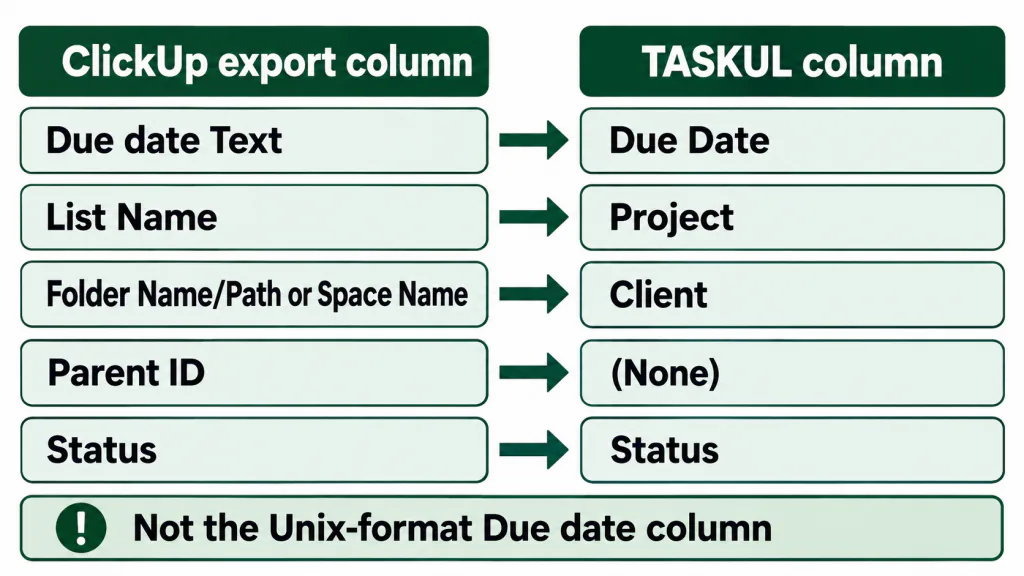
TASKUL’s Import button reads CSV files, so a ClickUp export can go in as it is. It can also read a Google Sheets link directly, as long as sharing is set to Anyone with the link
, whereas ClickUp’s own importer asks you to first export it to one of the supported file formats
(ClickUp Spreadsheets Importer). We have not run a real ClickUp file through TASKUL, so check these on the Match Your Columns screen before you import:
- Due Date: choose Due date Text. The Unix-format Due date column is a long number, and TASKUL is unlikely to read it as a date, so those tasks would arrive with no due date.
- Project: choose List Name. With no Project column, every task lands in one project called
Imported Tasks
. - Client: choose Folder Name/Path or Space Name, whichever you used for clients in ClickUp.
- Parent: set it to (None). ClickUp’s Parent ID is a code, not a task name.
- Status: statuses such as complete, closed or done import as Completed, in progress as In Progress, and review as In Review. Custom statuses such as Waiting on client import as Not started, so reset those afterwards.
Checklists, comments, attachments and custom fields do not come across. Keep the ClickUp export file until you have finished the job.
Recurring tasks are there too (Daily, Weekly, Biweekly, which means fortnightly, or Monthly), but ClickUp says Recurring tasks are available on every ClickUp plan.
(Use recurring tasks), so that is not a reason to move.
Your ClickUp decision checklist
Copy these into a note and fill them in before you pay or move. If the answers point to moving, run one client’s tasks in the new tool for a week alongside ClickUp before you move the rest.
- Wall hit: feature uses, storage, guest permissions, Spaces, or fit.
- Features you rely on: Gantt, Timeline, Dashboards, time tracking or billable time, and whether the first paid plan still counts their uses.
- Clients: whether each client needs to be inside the tool, and whether view-only access would be enough.
- Export test: which columns came through from one List, and which checklists, comments and files you saved elsewhere.
- Changeover date: the day new work stops going into ClickUp.
For keeping several clients moving once the tool question is settled, see our guide to juggling multiple clients as a freelancer.