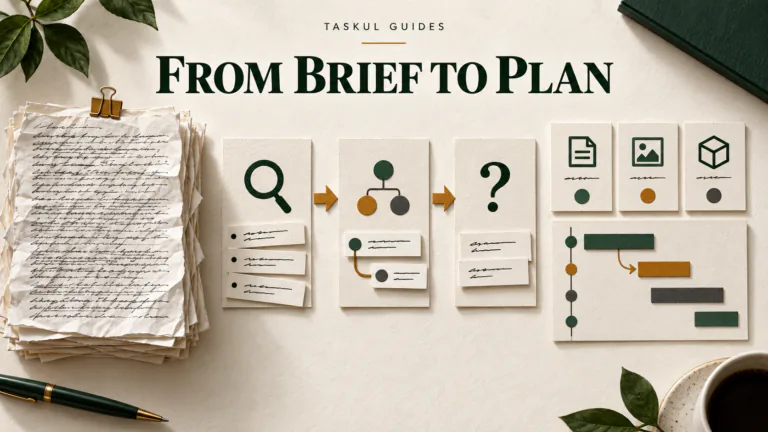

A website maintenance checklist is the list of checks you run on a website on a regular schedule: backups, updates, forms, security alerts, broken links, renewals and a report to the owner. This one is written for the person doing the maintenance, a freelancer or small studio looking after several client sites each month. It comes as a free Excel workbook with monthly, three-monthly and yearly checks for up to eight sites side by side, a Word checklist of what to agree with the client before the first month, and a monthly report template with a filled-in example.
If you own one website and look after it yourself, the monthly checks below still apply. You can skip the parts about agreeing things with a client.
Download the website maintenance checklist and templates
All four files are free and need no sign-up:
- Website maintenance checklist (Excel). A Sites tab for up to eight client sites, then Monthly (16 checks), Every 3 months (10 checks) and Yearly (10 checks). Each site gets its own column, and each cell is Done, Problem or Not needed.
- What to agree before you start (Word, A4). Eleven things to settle with the client before the first month, with a line for both of you to sign. It is not a contract, and it says so at the top.
- Monthly maintenance report, blank (Word, A4). Five sections: in short, what we did, needs your decision, changes you asked for, and coming up next month.
- Monthly maintenance report, filled in (Word, A4). One October report for a fictional physio clinic.
The examples are made up. The clinic, studio, people, website and numbers do not belong to a real business. The Excel file works in Google Sheets and Numbers too.
What is a website maintenance checklist for, if you maintain client sites?
For an owner, a maintenance checklist is a reminder list. For someone who maintains other people’s sites, it does three more jobs:
- It makes every site get the same checks, in the same order, every month. With six sites, the one you forget is the one whose contact form stopped working three weeks ago.
- It records what you did. The notes you make while checking become the monthly report, so the client can see what they are paying for.
- It shows where the plan ends. Anything the client asks for that is not on the list is outside what you agreed. That is easier to say when the list exists in writing.
This is different from a weekly status report during a build. Our client status report template is for while a site is being made. This checklist starts after the site is live and the handover is done, as covered in our web design project timeline.
What should you agree with the client before the first month?
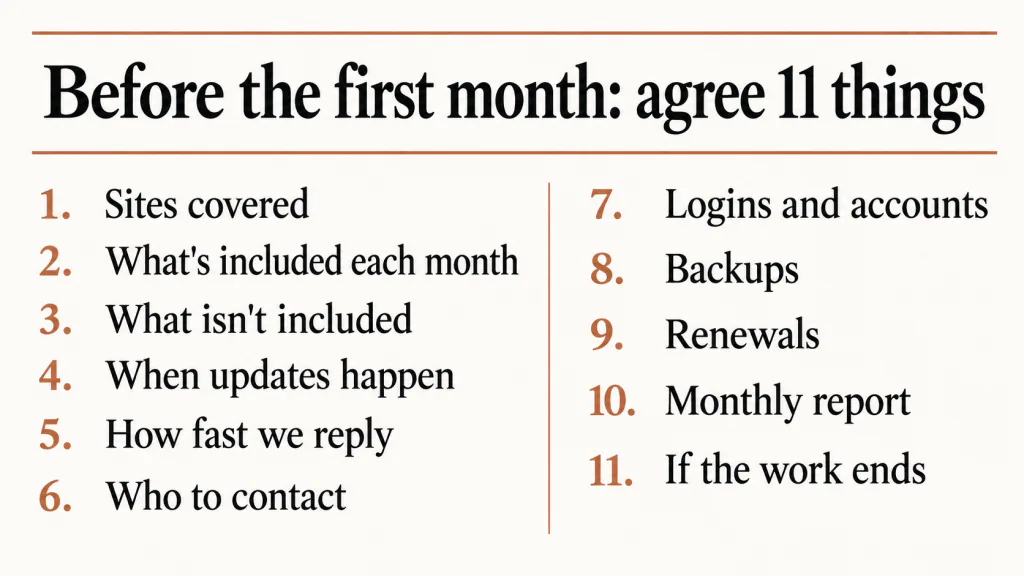
Most maintenance checklists start with the tasks. The problems in maintenance work usually start earlier: nobody agreed what was included, how fast you reply, or whose name the domain is in. The Word file has eleven sections to fill in together on a call:
- Sites covered. Every site address and platform. If part of a site is looked after by someone else, such as a booking system or a shop’s product list, write that down.
- What is included each month. Tick only what you will actually do and report on. Anything not ticked is outside the plan. If small content changes are included, write how many a month.
- What is not included. New pages, a redesign, writing content, fixing changes made by someone else, and hosting, domain and licence fees. Then write what happens when one of these comes up. “We send a written quote and start when you say yes” is enough.
- When updates happen. A regular day, outside the client’s busy hours, and what you do if an update breaks something.
- How fast you reply. What counts as urgent (the site is down, hacked, or forms or payments have stopped working), the reply time for urgent and for everything else in business days, and what happens on weekends and public holidays.
- Who to contact. One day-to-day contact, one person who can approve extra work, and who to call if the site goes down out of hours.
- Logins and accounts. Domain, hosting, website admin, DNS, email, Google Analytics and Search Console, paid licences. Next to each, write C (client), U (us) or a question mark. Share logins through a password manager, not by email.
- Backups. How often, where they are kept (somewhere other than the hosting), how long they are kept, and how often you test a restore.
- Renewals. The month the domain, hosting, SSL certificate and paid licences each renew, and who pays.
- The monthly report. The day it is sent, who it goes to, and what it covers.
- If the work ends. How much notice each side gives, and what you hand back: logins, the latest backup, and a list of plugins and licences.
The question marks in section 7 are the useful part. A domain registered in a former employee’s name, or under a developer who has since disappeared, is far easier to sort out in month one than on the day it expires.
What you charge for maintenance is a separate decision. Our guide to freelance rates in Australia has a section on retainers, which is what a maintenance plan is.
What goes on a monthly website maintenance checklist?
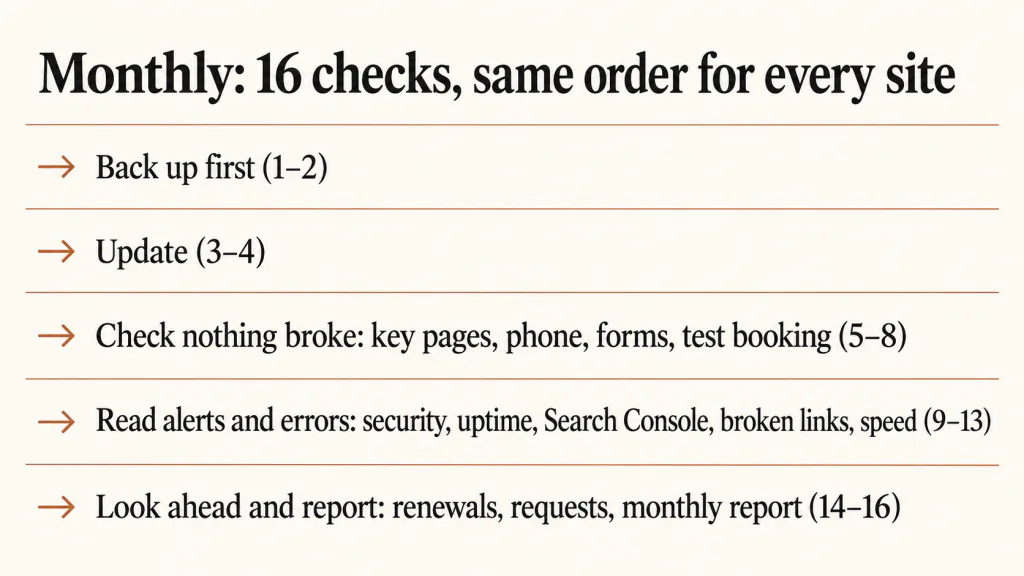
Sixteen checks, done in this order for every site. The order matters more than it looks: the backup comes before the updates, and the page and form checks come straight after them, so you know which change broke what.
Back up first
- Check the latest backup is as recent as you agreed in section 8 and is kept away from the hosting.
- Take a fresh backup before you update anything.
WordPress’s own guide to updating is direct about this: “Before you get started, it’s a good idea to back up your website.” Its plugin guide says the same: “Always make sure you have a current backup of your site before updating your plugins.“
One exception to the order: if the host or security plugin has already warned that the site may be hacked, stop before updating. Keep the backups from before the warning apart from any new ones, and deal with the warning first. Updating a hacked site can hide how it was got into.
Update
- Update the CMS core (WordPress or similar).
- Update plugins and themes. Write down anything you held back, and why.
Holding an update back is sometimes the right call, for example when a plugin’s new version changes a booking form and you want to try it on a copy of the site first. The rule is that every held-back update is written down with a reason and a date, and appears in the report. Leaving updates for months is not an option: WordPress’s security guide says “Older versions of WordPress are not maintained with security updates.“
Check that nothing broke
- Open the home page and the pages that bring in work: services, booking, shop, contact.
- Look at the same pages on a phone.
- Send a test through every form and check it arrives.
- If there is a shop or booking system, run a test booking or order.
A contact form that sends nowhere looks fine on the page, which is why it is easy to miss. The client finds out when someone mentions they never got a reply. If test messages arrive but land in spam, ask whoever manages the client’s email to check the domain’s email settings (SPF, DKIM and DMARC).
Read the alerts and errors
- Read any security alerts from the security plugin or the host.
- Note any time the site was down this month, from your monitoring tool.
- Check Search Console for new errors, messages or pages that dropped out.
- Check for broken links and pages that cannot be found (404s).
- Run the home page through PageSpeed Insights and compare with last month.
PageSpeed scores move a few points between runs, so look for big drops rather than small changes. The Core Web Vitals report in Search Console shows how the site performed for real visitors over time.
Look ahead and report
- Anything renewing in the next 60 days? Domain, hosting, SSL, licences.
- Small changes the client asked for: done, and within what the plan includes?
- Write and send the monthly report.
Check 15 is where scope quietly grows. If a request is outside what you agreed, it goes in the report under “outside the plan” with a quote, not into this month’s work for free. Our guide to stopping scope creep covers how to say that without souring the relationship, including on a retainer.
What should you check every three months and once a year?
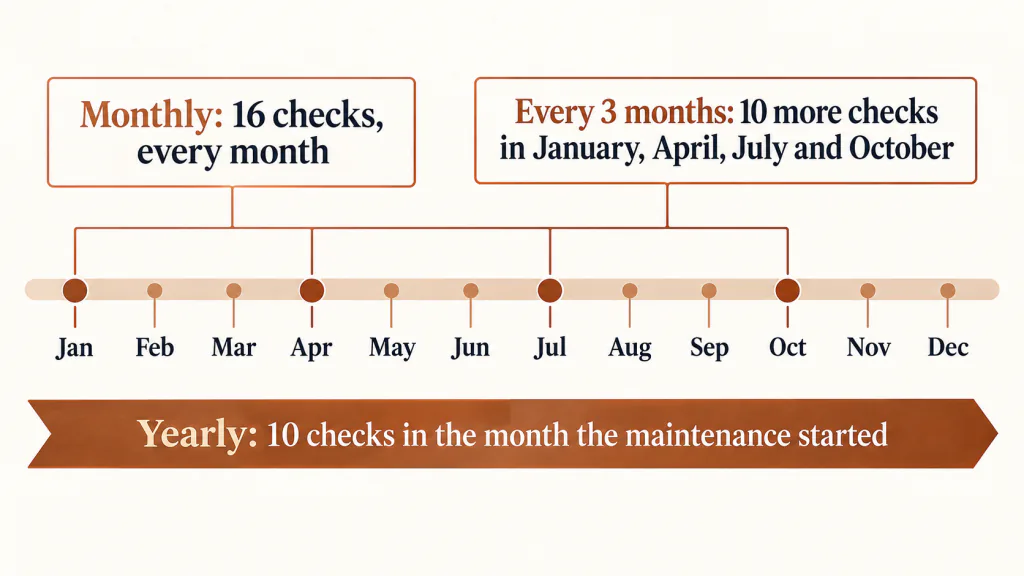
Some checks take too long to do monthly but go wrong if nobody ever does them. The workbook puts them on two more tabs.
Every quarter (January, April, July and October)
- Restore a backup to a copy of the site and check it works. A backup you have never restored is a guess. WordPress’s security guide recommends “regular whole database backups which you have tested are valid and that can be easily restored“.
- Remove admin accounts for people who have left: staff, contractors, and you, if you no longer need one.
- Check every admin account uses a strong password and two-step login (2FA).
- Remove plugins and themes that are not used.
- Check each remaining plugin is still being updated by its maker.
- Check the PHP version is one the host still supports.
- Check the site in Chrome, Safari, Edge and Firefox, and on an iPhone and an Android phone.
- Ask the client to check prices, opening hours, staff and contact details.
- Check new images have a short text description (alt text).
- Compare what you did against what the plan includes. If you are regularly doing more, it is time to talk about the plan.
Once a year (in the month the maintenance started)
- Domain: renewal month, who pays, auto-renew on, and the contact email on the domain still current.
- Hosting: renewal month, and whether the plan still suits the site’s traffic and size.
- SSL: does the certificate renew on its own? Check the expiry date.
- Paid plugin and theme licences: renewal dates and who pays.
- All logins in a password manager, and the client can still get into their own accounts.
- How long backups are kept, and that the storage is not full.
- Ask the client to have their privacy policy and terms reviewed.
- Copyright year and business details in the footer, such as ABN and address, still right.
- Go through the site with the client: pages to update or remove.
- Go through the maintenance agreement again: what is included, reply times, contacts.
If you take on several sites at different times of year, the yearly checks spread out across the year instead of landing in one month.
How do you run the checklist across several client sites?
The free checklists we found are built for one site. If you maintain six, you end up with six copies of the same list and no way to see at a glance which site has a problem. The workbook works the other way round:
- One column per site. Write up to eight client sites on the Sites tab, with the platform, hosting, when the domain renews, where backups are kept, your monitoring tool and who gets the report. Their names appear at the top of every other tab.
- One copy of the Monthly tab per month. Copy the tab, name it with the month, and work down the rows.
- Three answers per cell. Done, Problem or Not needed. Problem turns the cell red. Pick Not needed rather than leaving a cell blank, so you can tell the difference between skipped and forgotten.
- Notes at the bottom of each column. What you found, what you held back and why. This is the raw material for that client’s report.
Do all the sites on the same day if you can, the day you agreed in section 4. Going across the row (“update plugins” for every site, then “test forms” for every site) is faster than going down one site at a time, and a red cell in the same row on three sites often means the same plugin update caused all three.
WordPress applies minor and security updates to the core on its own from version 3.7 onwards. In its words, “you don’t have to lift a finger to apply minor and security updates“. Plugins and themes are a different matter. If you switch on automatic updates for them, WordPress suggests you first “make sure you’re able to rollback to a previous version of your website in case things go wrong“. Either way, checks 5 to 8 still need a person.
Above eight sites, add columns or start a second workbook. That is also the point to look at a monitoring or site management tool. This checklist is for doing the work by hand, before or alongside one.
What goes in a monthly website maintenance report?
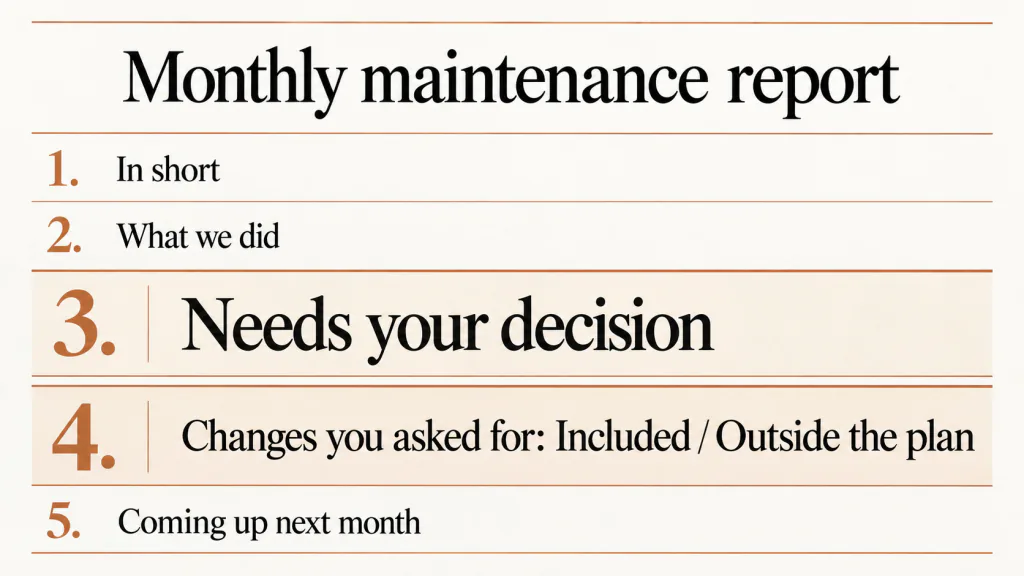
A maintenance report is how the client sees work that, done well, they never notice. The template has five sections:
- In short. Three lines at most. Lead with anything the client needs to act on.
- What we did. What was checked and what was changed. If you held something back, say why and when it will be done.
- Needs your decision. What, by when, and what happens if it is left. Prices go in a separate quote.
- Changes you asked for. Each request, where it is up to, and whether it was included in the plan or is outside it.
- Coming up next month. Anything the client will notice, or that needs them.
Sections 3 and 4 are what keep a maintenance plan from turning into unlimited free work. When requests marked “outside the plan” appear in writing every month, the evidence is already in front of the client by the time you raise the plan itself.
A filled-in example: one October report for a physio clinic (fictional)
Example Design Studio is made up. Chris Example looks after the website of Example Street Physio, also made up, at examplestreetphysio.example. On Wednesday 4 November 2026, Chris sends the October report.
In short. The site was down twice this month, for 18 minutes in total, both times at the hosting company. All updates are done except the booking plugin, which is being tested first. One decision is needed by Friday 13 November: the booking plugin licence.
What we did. Backups ran every day, with copies kept away from the hosting. October is a quarterly month, so Chris restored a backup to a copy of the site on Tuesday 20 October, and it worked. WordPress core and 11 of 12 plugins were updated on Tuesday 6 October. The booking plugin was held back because its new version changes the booking form, so Chris is testing it on a copy of the site first and will update it by Tuesday 10 November. The home, services, booking and contact pages were checked on desktop and phone, and test messages through both forms arrived. One broken link, to a former staff member’s profile, was removed.
Needs your decision. The booking plugin’s paid licence renews on Monday 30 November. Shall Chris renew it in the clinic’s name, as last year? Please answer by Friday 13 November. If it lapses, the plugin stops getting updates and the clinic would need a replacement.
Changes you asked for. New December opening hours on the contact page, done 20 October, included. A new photo on the Pilates page, done 27 October, included. A new page for Saturday Pilates classes: outside the plan, quote sent 28 October.
Coming up next month. The booking plugin update, after testing. The next backup restore test in January 2027. The domain renews in February 2027, with a reminder in January.
The clinic owner can read the first three lines and know the one thing they have to do. Everything below is there if they want it, and it shows a month of work on a site that, from their side, simply kept working.
What goes wrong with website maintenance arrangements?
- Nothing was agreed in writing. “Maintenance” means updates to you and “any small change I think of” to the client. The agreement list exists to stop this.
- Backups that were never tested. A backup can run every night for a year and still turn out, on the day it is needed, to be missing the uploads folder. Test a restore every three months.
- Updates without checks. Everything was updated and nobody opened the booking page afterwards. Checks 5 to 8 come straight after updating for this reason.
- The domain is in someone else’s name. Nobody knows who can renew it until the renewal email goes to an inbox nobody reads. Section 7 of the agreement and the yearly check deal with this.
- No report. The client sees an invoice every month and no work. Sooner or later they ask what they are paying for, or quietly cancel.
- The plan never changes. The site has doubled in size and the plan is the one agreed three years ago. The three-monthly “compare what you did against what the plan includes” check is when you notice.
Running website maintenance in TASKUL
TASKUL, which publishes this guide, is project management software for freelancers and small studios. It does not check, update or back up websites. What it can do is hold the schedule for each client site and show you what is due:
- Each project has a checklist, and the Maintenance & support project type has a template. Choose the type and press Apply template. Under Before start it adds: Scope of maintenance confirmed, Response hours and SLA confirmed, Contacts and escalation path confirmed, Server and domain admin details confirmed, Backup policy confirmed, and CMS and plugin update policy confirmed. You can add your own items with Add item.
- The template also adds four items under Before delivery: Monthly report written, Backups confirmed to be running, Security updates applied, and Uptime checked. These are ticked once and stay ticked. They do not reset each month.
- For the monthly round, create a task with a due date and set it to Repeat Monthly. When you mark it complete, TASKUL creates next month’s task with the same name, description and assignee. A task with no due date does not repeat. Pick a due date between the 1st and the 28th so it lands on the same day every month.
- The longest repeat interval is Monthly (the options are Daily, Weekly, Biweekly and Monthly). The quarterly and yearly checks are not automatic: give them their own tasks with due dates you set by hand.
- The dashboard shows Due This Week, so every site’s monthly round appears there in the week it is due.
On the free plan you can have up to 10 projects. With one project per client site, that is 10 sites, and deleted projects still count towards the 10. TASKUL does not track time, so if your plan includes a set number of hours, keep that count in the workbook’s notes or the report.
Website maintenance checklist FAQ
How often should a website be maintained?
Monthly for the core checks in this list, with a longer check every quarter and a review once a year. Busy sites, such as shops and booking sites, may need some checks weekly, especially forms and orders. WordPress’s own guidance is to back up before every update and to keep plugins and themes up to date, but the WordPress pages quoted here do not give a number of days, so agree the backup frequency with your client in section 8.
Is a website care plan the same as maintenance?
Usually, yes. “Care plan”, “support plan” and “maintenance retainer” are names for the same arrangement: an agreed set of checks and small changes each month for a monthly fee. What matters is not the name but what is written in sections 2 and 3 of the agreement.
Does a Shopify or Squarespace site need maintenance?
Less of it. The platform updates its own software, so the core and plugin updates in checks 3 and 4 mostly do not apply. Forms, checkout tests, apps or extensions, broken links, Search Console, renewals, accounts and the report all still do. Pick Not needed in the workbook for the checks that do not apply to that site.
What should not be included in website maintenance?
New pages, new features, a redesign, writing new content, fixing changes someone else made, and third-party fees for hosting, domains and licences. All of these can be offered, but as separate work with a quote. Write them down in section 3 of the agreement, along with what happens when one comes up.
How much should I charge for website maintenance?
This guide does not give prices, because they depend on how many sites, how many checks and how many changes are included. Start from the hours a month the checks actually take you per site, then price it as a retainer. Our guide to freelance rates in Australia walks through that.
Can I use the checklist in Google Sheets?
Yes. Upload the Excel file to Google Drive and open it with Google Sheets. The Done, Problem and Not needed pick lists and the red Problem cells usually carry across. Check them once after uploading. The Word files open in Google Docs the same way.