
A website content collection template is the list of words and photos you need from a client, set out page by page, with who writes each item, who approves it and when it is due. This one is for the freelance web designer or small studio who has a signed scope and is about to start building. It comes as a tracker you can open in Excel or Google Sheets, a sheet for checking what comes back, and a request email you can send today.
Asking is only part of the job. Plenty of content trouble starts when something arrives and goes straight into the build: a draft nobody approved, a logo copied from a Facebook page, a photo found in a web search. So this guide also covers how to check each item when it comes in.
Download the website content collection template
All three files are free and need no sign-up:
- Website content tracker (CSV). One row for each thing you need: the details that appear across the whole site, the pages of the current site, and every section of Home, About, Services, Contact and Legal. Opens in Excel, Google Sheets or Numbers.
- Received check (CSV). One row each time something arrives, with the six questions from further down this guide.
- Request email (TXT). A plain-English email to the client, followed by the questions for each page, in the same order as the tracker.
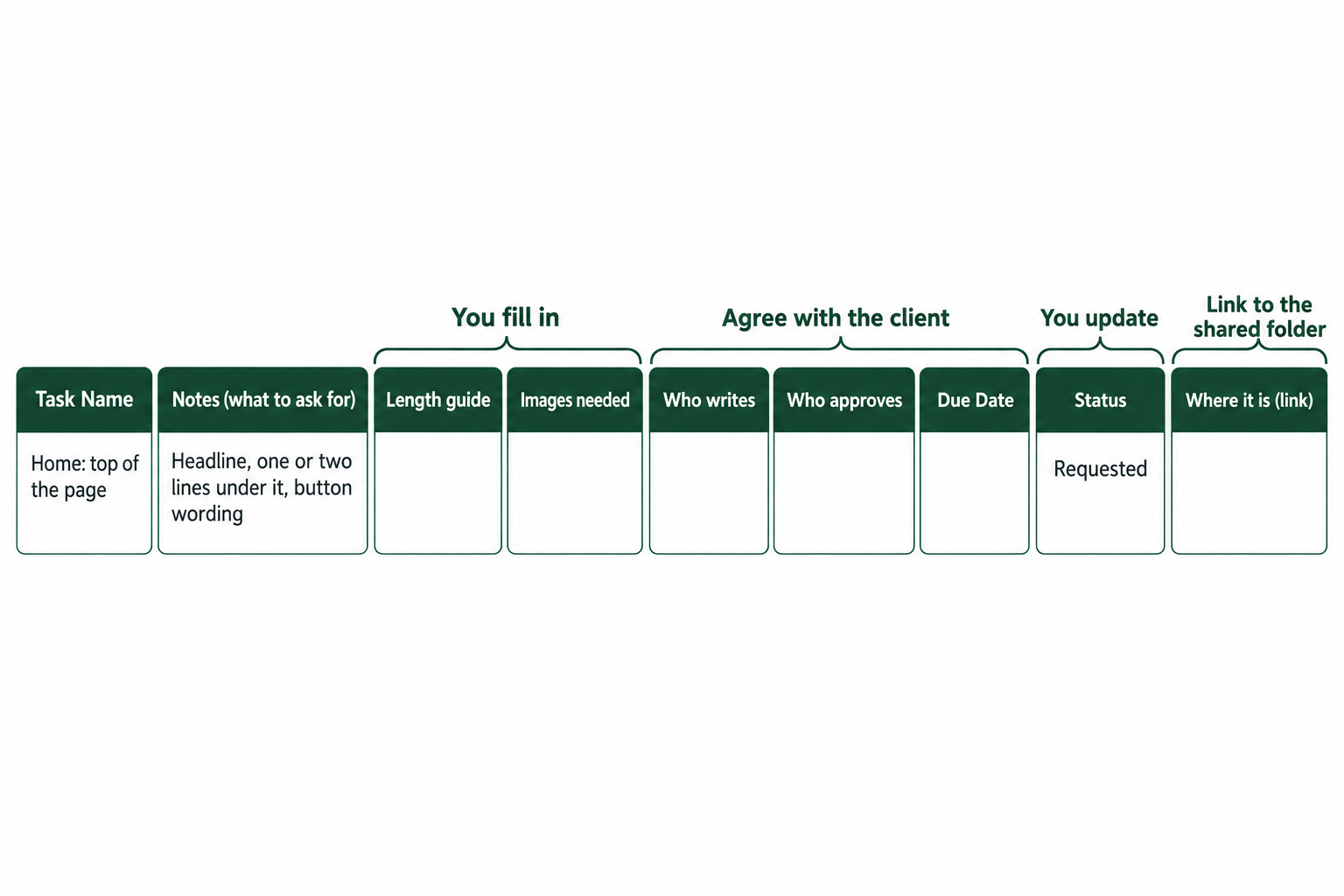
The tracker stays with you. The client only gets the email. Before you send it, delete the pages the site doesn’t have, copy the Services row once for each service, and fill in the length, images, who writes the alt text, who writes, who approves and the due dates. Then copy the dates, length and photo needs into the email and replace the square brackets. Every row starts at Requested, which becomes true the moment the email has gone.
Where does content collection sit in a web project?
It comes straight after the signature and before the build. By this point the creative brief has told you what the site is for, and the scope of work has recorded who supplies the words and photos, by what date, and what happens if they are late. Your onboarding message covers what you need to get the whole job moving. This request goes a level down, to what goes on each page.
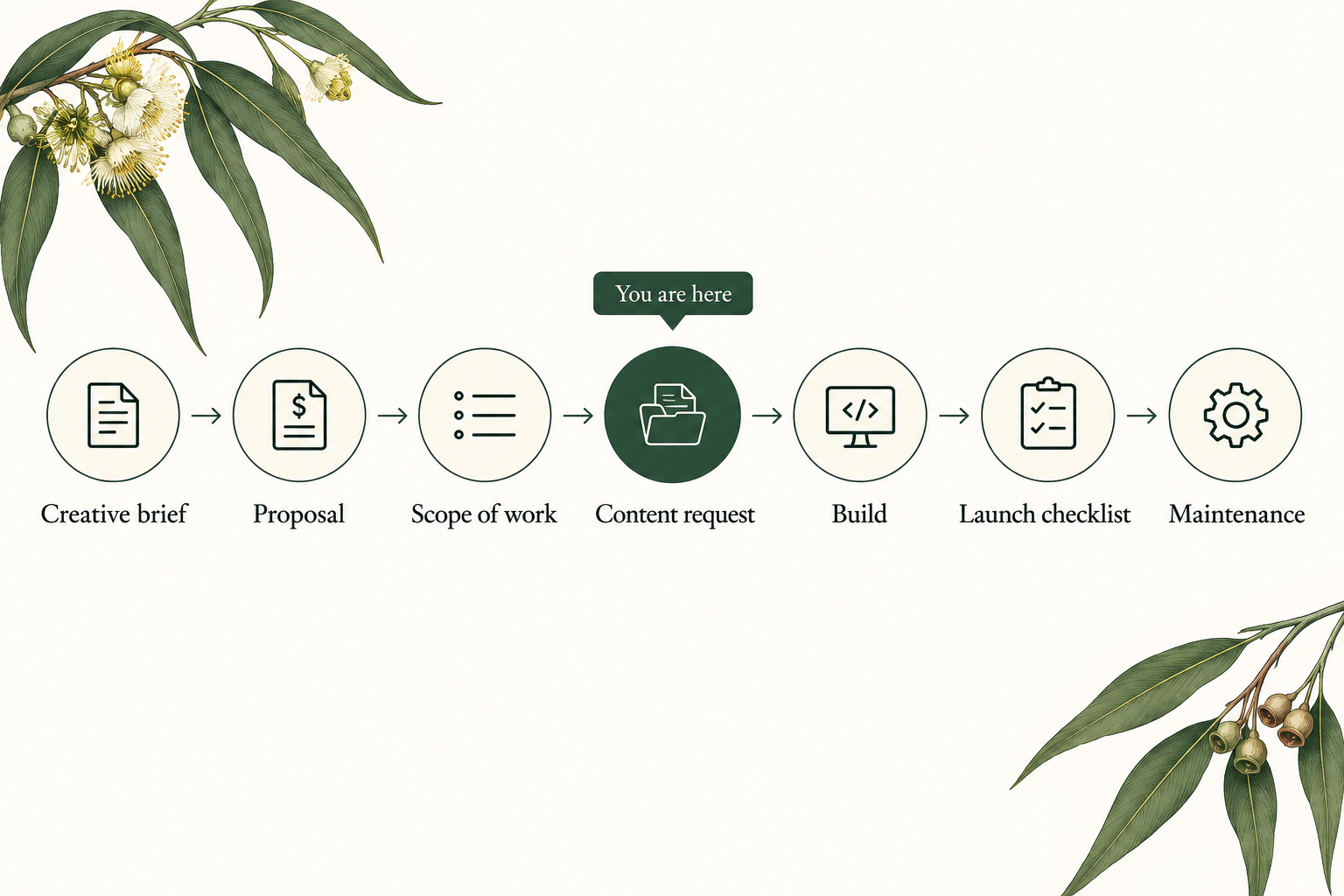
If the client runs late, you don’t need to renegotiate anything here. Go back to the scope, and use the project timeline to show what the delay moves.
What should you ask for on each page?
Ask questions the client can answer. A dog groomer can’t do much with “Home page intro copy, 80 words”, but can answer “What do you do, and who do you do it for? Say it the way you’d tell someone you’ve just met.” These are the areas the tracker covers, with one of the questions from the email for each:
| Part of the site | What to ask for | A question from the email |
|---|---|---|
| Whole site | Logo, colours, fonts, business name, phone and email, address or service area, hours, social links, where form messages go | What address should we show? Or, if you don’t want it public, what area do you cover? |
| Home | The top line, what you do and who for, up to three reasons, testimonials, button wording | What’s the one thing you most want a visitor to do? |
| About | How the business started, the people, qualifications and memberships | How did the business start, and why do you do this work? |
| Services | For each service: name, who it’s for, what’s included, what isn’t, how it works, whether prices appear | What’s included? And what isn’t, that people often assume is? |
| Contact | The best way to get in touch, what the form asks, how soon the client replies, parking and access | How soon do you usually reply? |
| Legal | Privacy policy and any other legal wording, prepared and checked by the client | Does your site need a privacy policy or other legal wording? |
Two rows catch people out. Testimonials need the customer’s agreement as well as their words, so the tracker asks for both. And form notifications, the address that receives each enquiry, are easy to forget until a live form is sending messages to nobody.
Each row in the tracker holds one thing you can chase on its own:
How do you ask for images, logos and alt text?
Ask for the original file: the one from the phone, the camera or the photographer, and for a logo, the one from whoever designed it. Logo files often end in .ai, .eps, .svg or .pdf. A logo saved from a social media profile can look fine in an email and fall apart on a large screen.
Be careful with images pulled from the web. Copyright in Australia applies without any registration. As business.gov.au puts it, “Copyright protection is free and automatic under the Copyright Act 1968.” A picture being online doesn’t make it yours to use. This guide isn’t legal advice. The practical step is to ask the client to check they can use each photo and that anyone recognisable has agreed, then write down who checked. If nobody can answer for an image, leave it out.
Decide who writes the alt text, the short description read out for people who can’t see the image, before you send the request. Either the client writes one short sentence per photo, or they tell you what each photo shows and you write it. The email has both versions, so delete the one you don’t want.
What should you bring over from the current site?
If the client already has a website, list every page and get one of three decisions for each: Keep, Rewrite or Drop. Do this early, because a page marked Keep needs no new words and a page marked Drop needs nothing at all. Without the list, clients tend to assume everything moves across, and you find out in the last week.
Ask which photos stay as well. They may be the only copies the client has, and an old site can be hard to get back into once it has gone.
How do you send the request so it comes back usable?
- Send one email. Questions spread across several messages get answered in several places.
- Give each section its own date. One big deadline tends to get ignored until it passes. Start with the details for the whole site, since most clients can answer those quickly.
- Name the approver. If two owners both have opinions, sort that out before the words arrive, and write the name into the request.
- Use one shared folder. Give one link and ask for everything to go there. Replies with attachments are how the third version of the About page goes missing.
- Say what you won’t do. The email says you’ll fix typos and fit the words to the design, but won’t rewrite them. If the client wants them written, that’s extra work to talk about. The scope creep guide covers how to raise it.
How do you check content when it arrives?
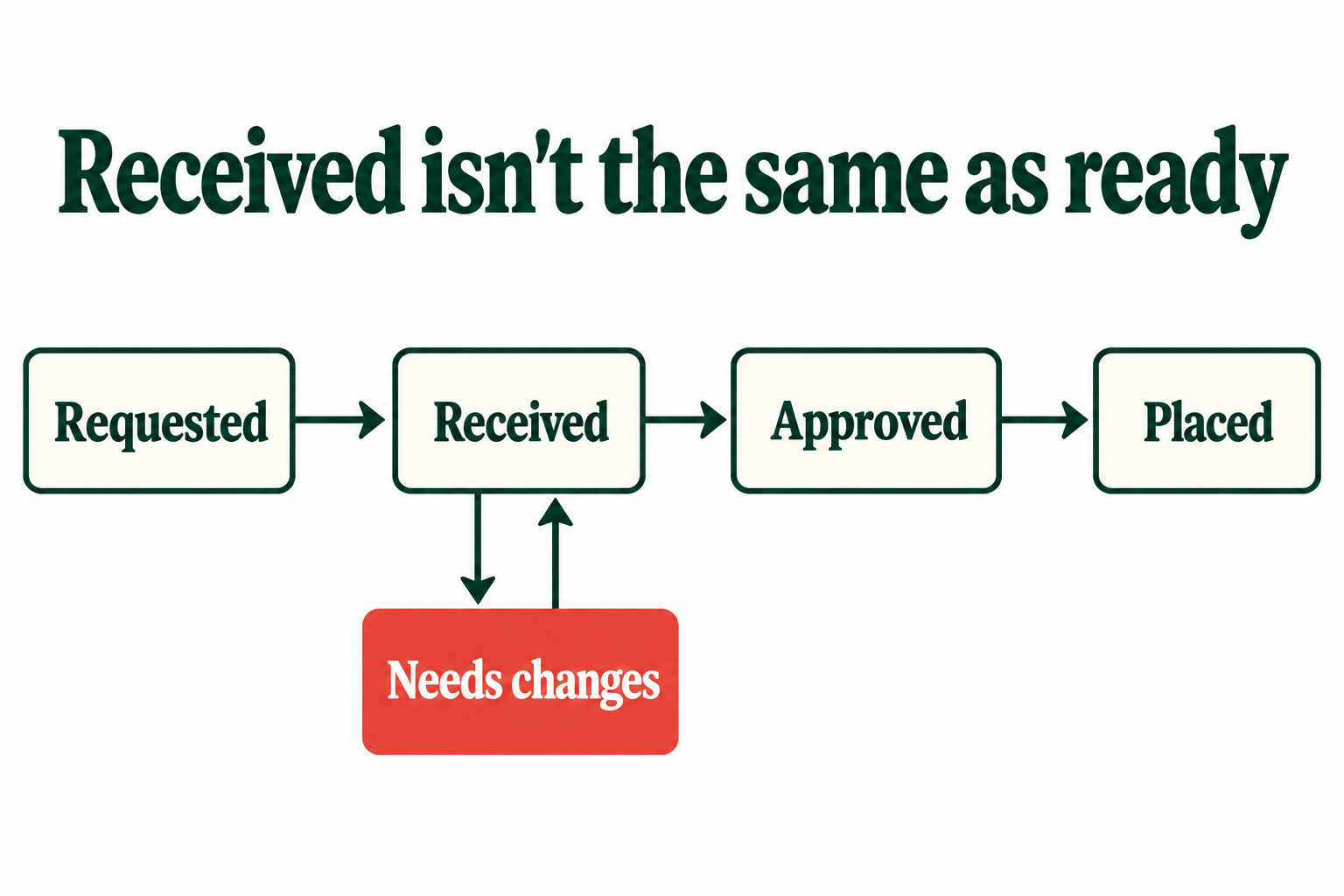
Check each item soon after it arrives, while the client still remembers it. Received only means it turned up. It says nothing about whether you can build with it, which is why the tracker has five statuses instead of a tick.
| Status | What it means |
|---|---|
| Requested | You’ve asked, and it hasn’t arrived. |
| Received | It has arrived, and you haven’t checked it yet. |
| Needs changes | You’ve checked it and told the client what to change. |
| Approved | It’s final, the approver has signed off, and it passed your check. |
| Placed | It’s on the site you’re building. |
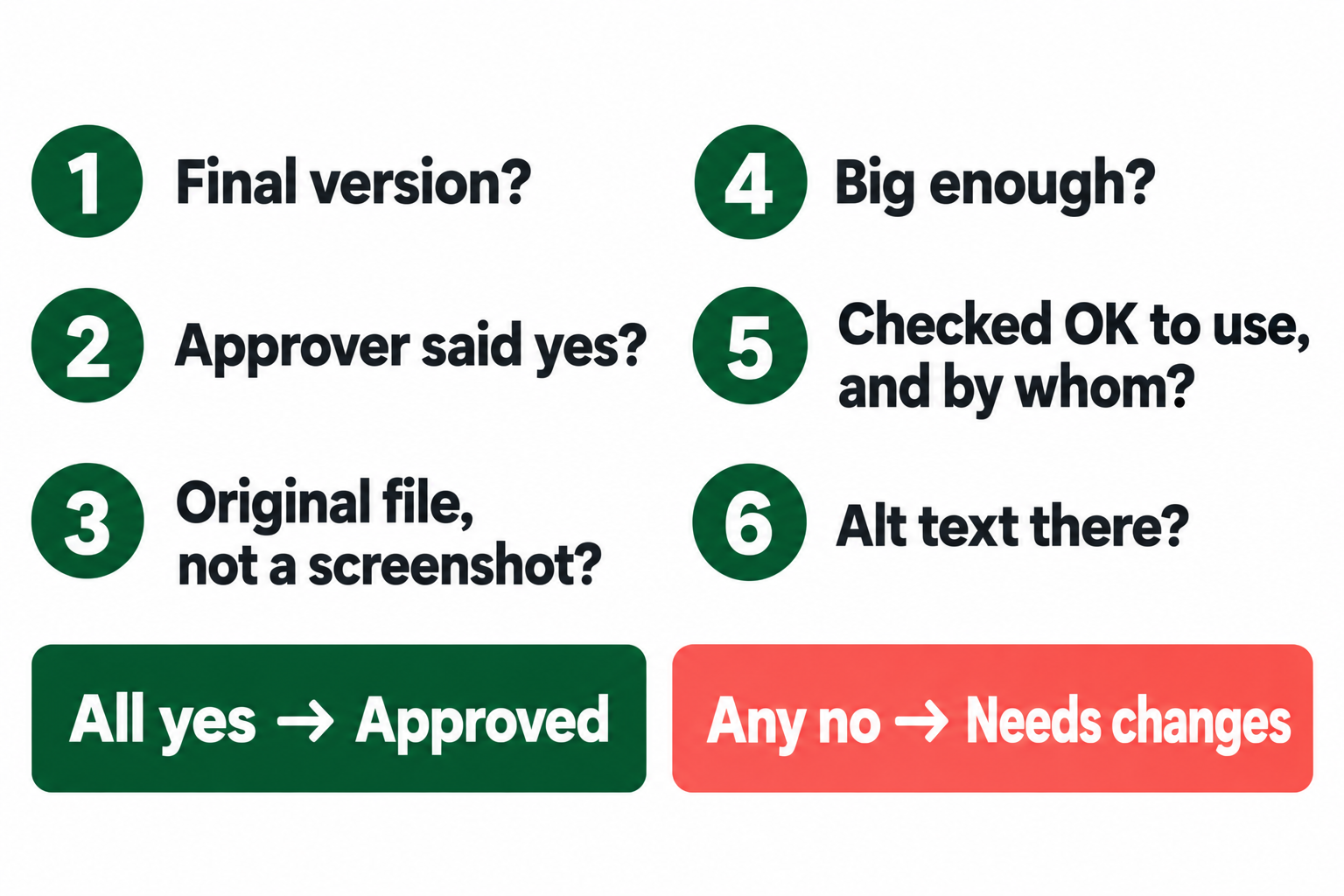
Then run these six questions in the received check. Questions 3 to 6 are for images, so mark them n/a for words. The exception is testimonials: they count as words, but question 5 still applies, because each customer has to have agreed. Any no means Needs changes: write what to change in the received check, send it back, and update Status in the tracker.
- Is it the final version? Look for the word DRAFT, comments in the margin and tracked changes.
- Has the named approver signed off? Record the name. “Sam’s happy with it” only helps if Sam is the approver.
- Is the image the original file? A screenshot or a picture out of a social media post usually gives itself away by its size.
- Is it big enough? Compare it with the smallest size your design needs. That number depends on your layout, so keep it in the Images needed column.
- Has someone checked it’s OK to use, and who? The sheet records who said so. A name doesn’t make the image safe to use, and if nobody can answer, it’s a no.
- Is the alt text there, or do you have what you need to write it?
You can often start building before everything is in, using the structure you’ve agreed and swapping the real words in as they’re approved. Keep Approved and Placed separate, so an unchecked item doesn’t end up in the build looking finished.
A filled-in example: a dog groomer’s five-page site (fictional)
Example Street Dog Grooming and everyone below are made up. Chris runs a one-person web studio. The scope is signed for a five-page site, and Jane, the owner, has the final say. Her partner Alex looks after the grooming side, so he writes the Services page. The last column is Chris’s own note, added here to show what happened.
| Task Name | Who writes | Who approves | Due Date | Status | Where it’s up to |
|---|---|---|---|---|---|
| Whole site: logo | Jane | Jane | 13 Nov 2026 | Needs changes | Jane sent a screenshot from Instagram. Chris asked who designed the logo so she could ask them for the original file. |
| Home: why customers choose you | Jane | Jane | 18 Nov 2026 | Approved | Three reasons, taken from things customers had said to her. Passed the check. |
| Home: testimonials | Jane | Jane | 18 Nov 2026 | Needs changes | Three comments arrived with first names, but only one customer had agreed. Jane is asking the other two. |
| Services: full groom | Alex | Jane | 23 Nov 2026 | Received | Arrived on the due date. Chris hasn’t checked it yet, and Jane hasn’t approved it. |
| Legal: privacy policy | Jane | Jane | 27 Nov 2026 | Requested | Jane is preparing the wording herself and checking what her business needs. |
Chris can filter the Status column and see what’s holding the job up: two things Jane has to fix, one thing he has to check, and one that isn’t due yet. That makes for a much shorter email than “still waiting on content”.
Running content requests in TASKUL
TASKUL is our product, so weigh this section with that in mind. It can hold the list of requests, but it won’t collect the files for you.
- Bring the list in. Fill in Project and Client on every row first, then import the tracker CSV, or a Google Sheets link shared as “Anyone with the link”, and check the columns match on the import screen. Task Name, Project, Client, Notes and Due Date come across. Who writes, Who approves, Alt text written by, the length and image columns and the link column stay behind in your sheet. If Project is blank, TASKUL uses Imported Tasks as the project name. If Client is blank, a single open project with the same name can supply the client, which may put your rows in another client’s project. Check the client, project and Existing/New preview before importing. Status only reads words like Done, In progress and In review, so Requested comes in as a new task.
- Assign requests to the client. Invite the client to the project, and they create a TASKUL account to join. Then assign tasks to them. With assignment emails enabled in their settings, they can receive an email when you assign a task and can tick it off themselves. These notifications are per task, so assign one task per section, or warn them first.
- Keep the folder link in one place. Put your Google Drive or Dropbox folder in the project’s Important Links, where the client can open it.
Know the limits before you rely on it. TASKUL doesn’t store files, and it has no form for clients to type their words into, so the answers still come back in a document. It doesn’t send English-language reminders as a due date gets close, so put your own follow-up dates in your calendar. An invited client can see the project’s task list, summary and member list, can edit any task that isn’t assigned to someone else, and can change or remove the links. A tick from the client means they’ve sent it. It doesn’t mean it’s approved, so your received check still applies.
Website content collection template FAQ
Can I use this in Word or Google Docs?
The request can go in either. It’s plain text, so you can paste it into an email, a Word document or a Google Doc, whichever your client finds easiest. The tracker and received check are spreadsheets, so open those in Excel or Google Sheets.
Should I wait until all the content arrives before I start building?
Not for everything. The timeline guide has a worked example of what late content moves, which helps you decide what can go ahead.
What if the client says they can’t write it?
Ask them to answer the questions in dot points, or talk you through them on a call and send them your notes to approve. If they want the words written from scratch, that’s copywriting, and it needs to be in the scope or added to it.
Who is responsible for the privacy policy?
The template treats it as the client’s: they prepare the wording and check what their business needs, with their own adviser if necessary, and you place it as supplied. Say so in writing, as the request email does.
How is this different from a launch checklist?
This covers what you need before the build. The website launch checklist covers the checks just before and after the site goes live.